Fingerprint Browser Extension Download for Chrome & Firefox
Looking for a reliable fingerprint browser extension download for Chrome or Firefox? Fingerprint Browser Assistant helps you inspect browser signals, test privacy settings, and configure a proxy in a controlled local environment. Download the package you need below and follow the illustrated setup steps.
Download the Fingerprint Browser Extension
Choose the package for your browser. Both downloads are version 0.5.38 ZIP archives hosted on this website.
Chrome Extension Installation
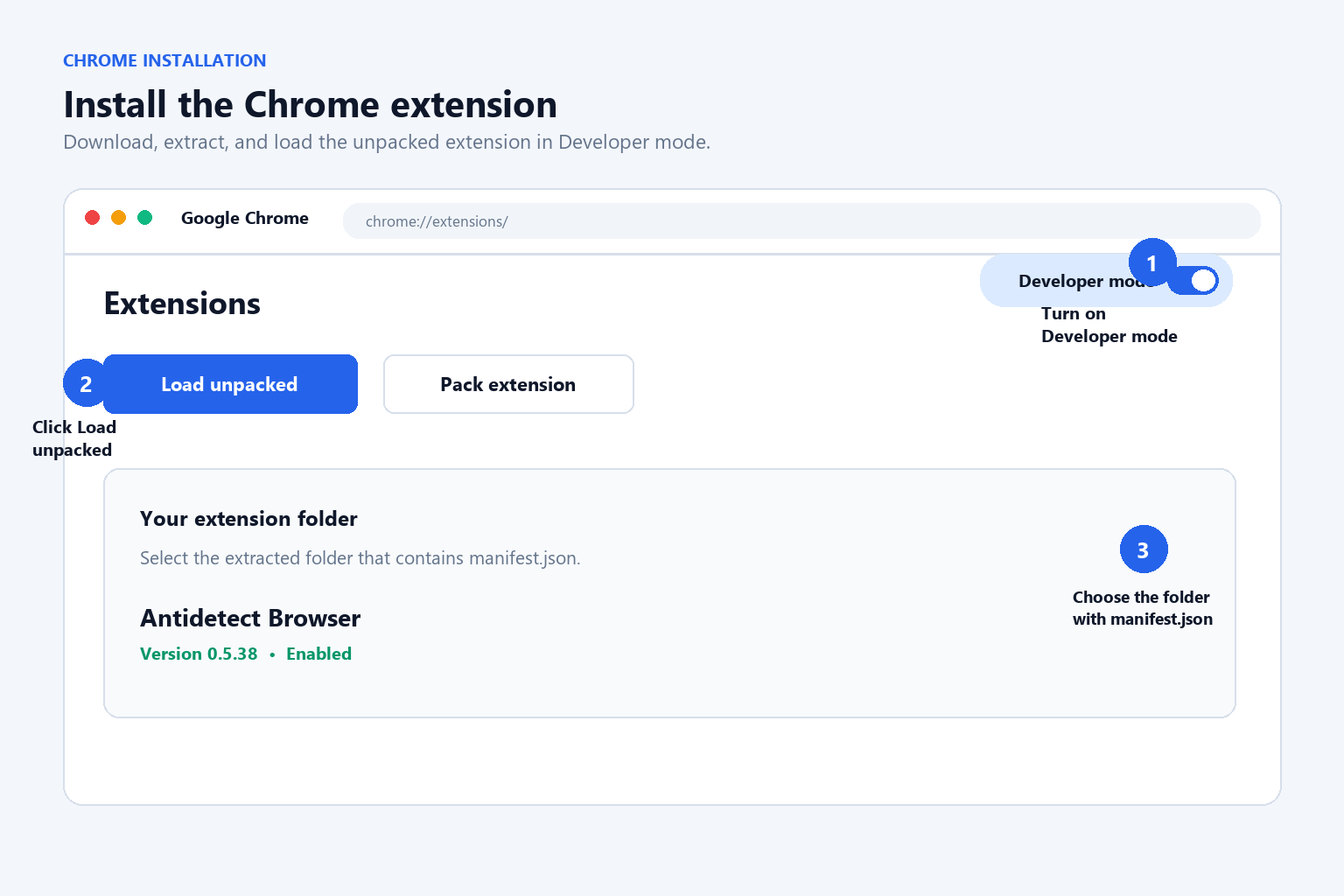
- Download the Chrome ZIP package above and extract it to a local folder.
- Open
chrome://extensions/in Google Chrome. - Turn on Developer mode in the upper-right corner.
- Select Load unpacked, then choose the extracted folder that contains
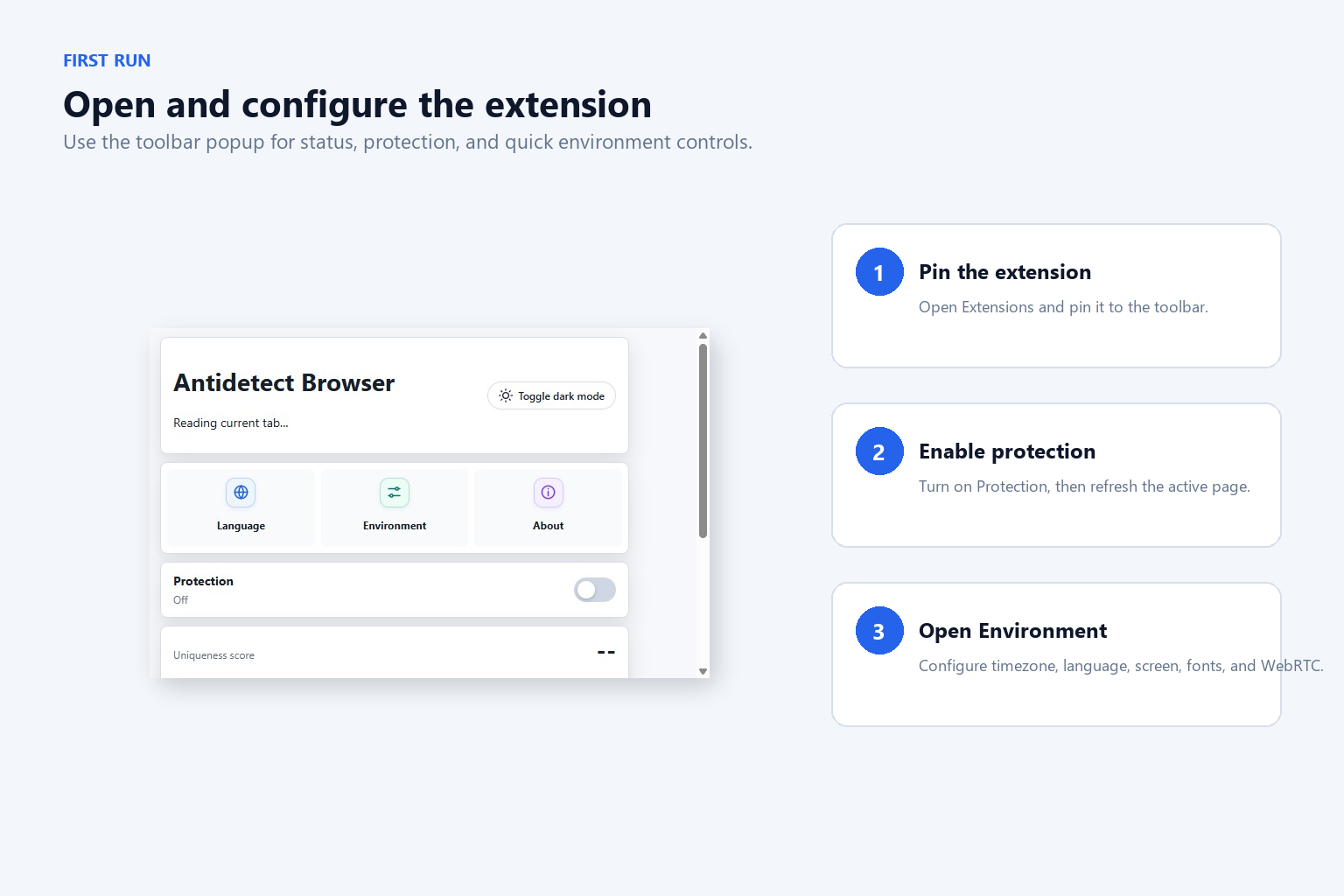
manifest.json. - Pin Fingerprint Browser Assistant to the toolbar and click its icon to open the popup. Use the extension options page for full configuration.
Firefox Extension Installation
Important: The Firefox ZIP is unsigned and is intended for temporary local testing through Firefox’s built-in debugging page. A temporary add-on may need to be loaded again after Firefox restarts.
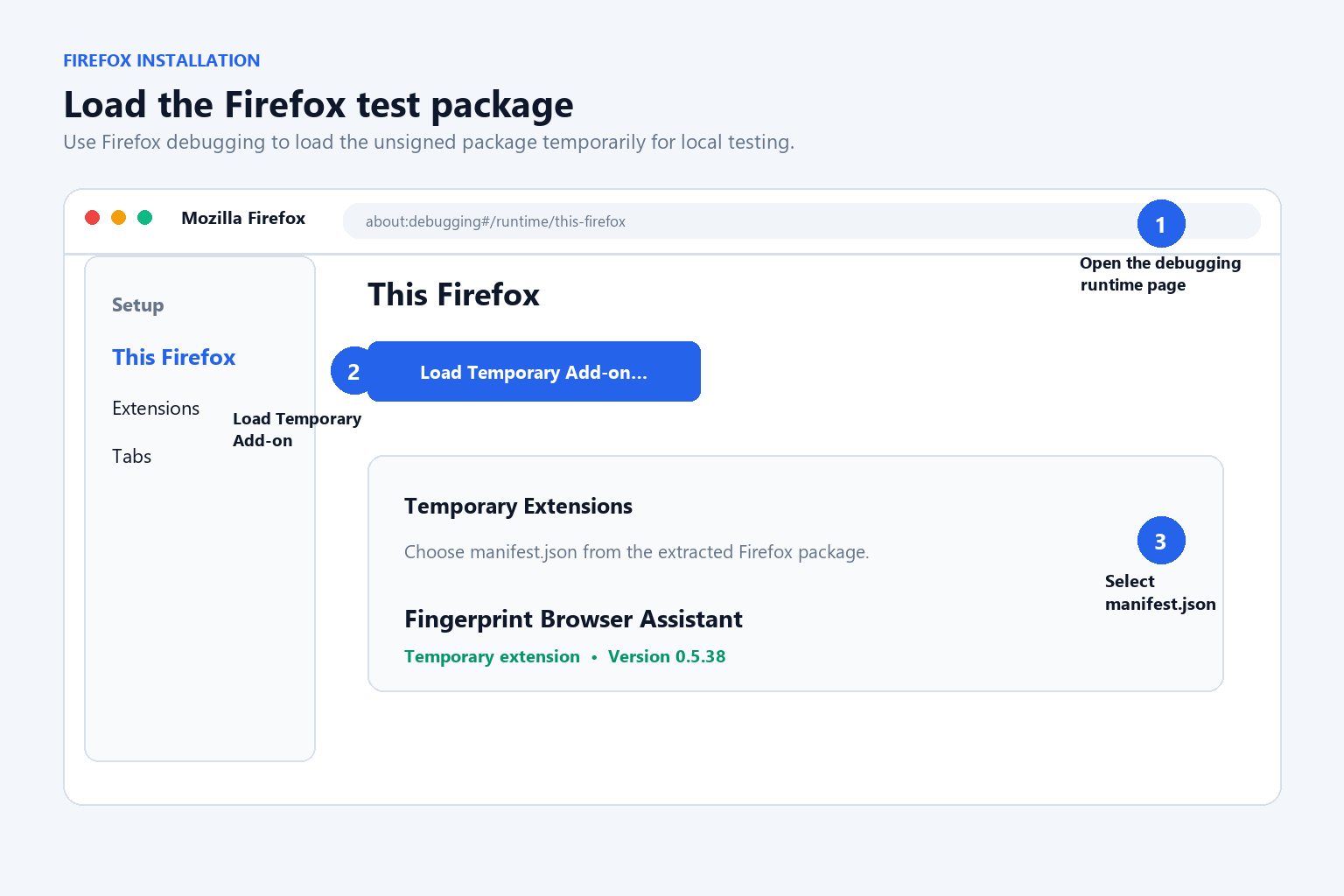
- Download the Firefox ZIP package and extract it.
- Open
about:debugging#/runtime/this-firefoxin Firefox. - Click Load Temporary Add-on.
- Select the extracted folder’s
manifest.jsonfile. - Open the extension from the Firefox toolbar and review the available fingerprint and privacy-test settings.
First-Time Setup
- Open the extension popup and select your preferred interface language.
- Review the detected User-Agent, language, time zone, screen, Canvas, WebGL, Audio, and WebRTC signals.
- Adjust only the values required for your test scenario, then save the profile.
- Refresh the target page when a page-level setting requires a reload.
Configure and Test a Proxy
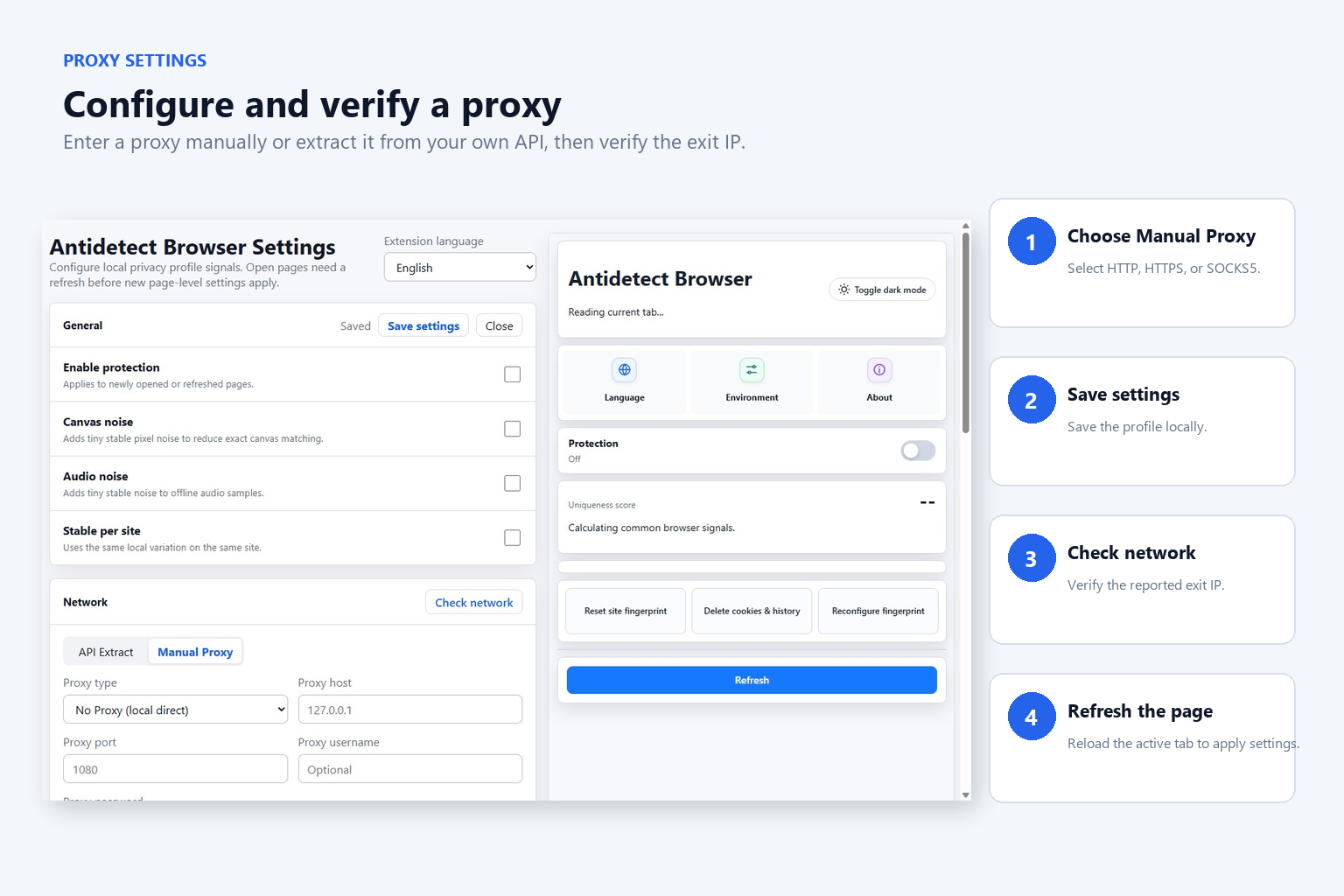
- Open the extension options and go to the proxy section.
- Choose HTTP, HTTPS, or SOCKS5 and enter the host, port, and credentials supplied by your provider.
- Save the configuration and run the built-in connection check.
- Verify the resulting exit IP and browser signals on a test page before using the profile.
Key Features
- Inspect common browser signals, including User-Agent, language, time zone, screen, Canvas, WebGL, Audio, and WebRTC.
- Configure language, time zone, resolution, fonts, and WebRTC settings for privacy testing.
- Support HTTP, HTTPS, and SOCKS5 proxy profiles and check the exit IP.
- Import proxy details from a user-provided API endpoint and keep profiles in local browser storage.
- Reset a site’s local fingerprint seed or clear site data when needed.
- Switch between English and Simplified Chinese interfaces.
Package Details and SHA-256 Checksums
| Package | Version | Size | SHA-256 |
|---|---|---|---|
| Chrome | 0.5.38 | 98,915 bytes | 9624D2506AD4EE6AF9B2DC9D5A2B6440B29277E275376ABFE64F6EB66012A54F |
| Firefox | 0.5.38 | 99,107 bytes | CC4F4492D3F7BF70A68A090A0A6688EFC8B9A343E189A8A4ED0427A2E690C20D |
Privacy and Security
Settings are stored in local or browser-sync storage, depending on the browser configuration. Proxy credentials remain on the user’s device. The extension does not sell personal data or load remote executable code. Download only from the links on this page, verify the file name and checksum, and review the Fingerprint Browser Assistant privacy policy before use.
Frequently Asked Questions
Can Chrome install the ZIP file directly?
No. Extract the ZIP first, then use Load unpacked on the folder containing manifest.json.
Is the Firefox package signed?
No. This package is for temporary testing with about:debugging. It may need to be loaded again after a browser restart.
Where are settings stored?
Profiles and preferences are kept in browser storage on the device, subject to the browser’s sync settings. Do not enter credentials you do not want stored locally.
When do page-level settings apply?
Some changes take effect after the current page is refreshed. If a site still shows the old value, reload the tab and check the active profile.