Linghui AI Chrome Extension: Download and User Guide
Linghui AI is a Chrome Manifest V3 side-panel extension for AI image creation. It supports text-to-image generation, image-to-image editing, automatic image prompt recognition, model synchronization, reusable prompt history, custom sizes, multi-column results, and ZIP downloads.
Download Linghui AI
- Package:
linghui-ai-chrome-extension-v0.1.10.zip - Version: 0.1.10
- File size: 42,220 bytes
- SHA-256:
01E7251B29C2A17EE99E097DFB102DB1016DFC584464BD3301D1668F804C6152
Install in Chrome
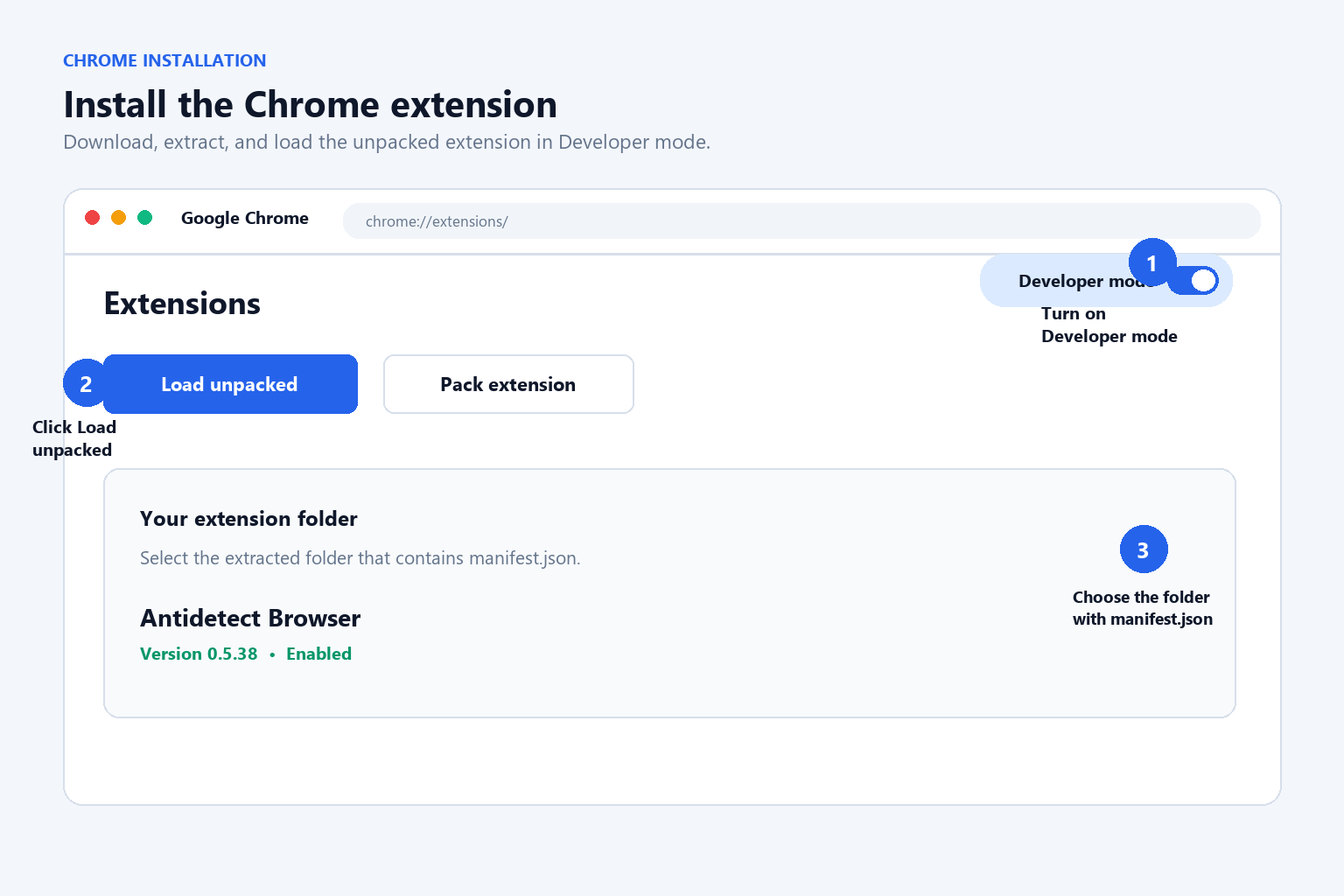
- Download the ZIP package and extract it to a local folder.
- Open
chrome://extensions/in Chrome. - Turn on Developer mode.
- Click Load unpacked.
- Select the extracted
extensionfolder. - Pin Linghui AI from the Extensions menu, then click it to open the Chrome side panel.
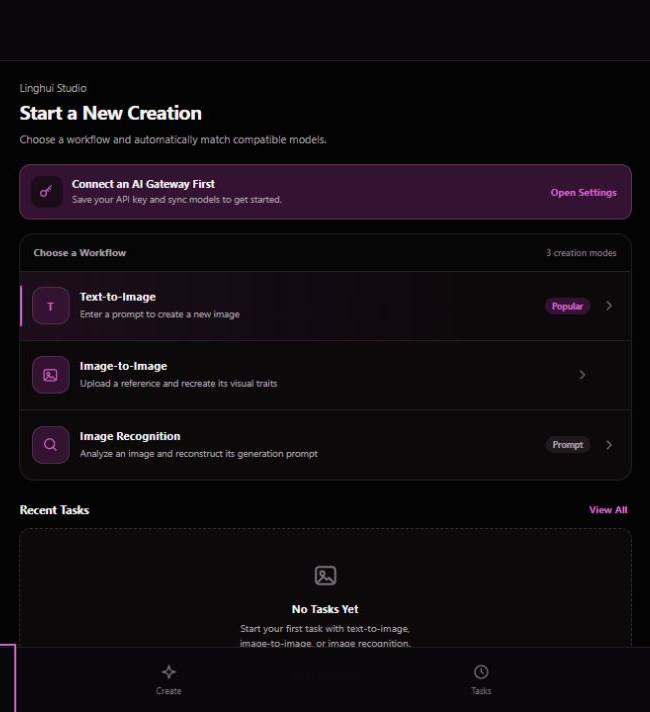
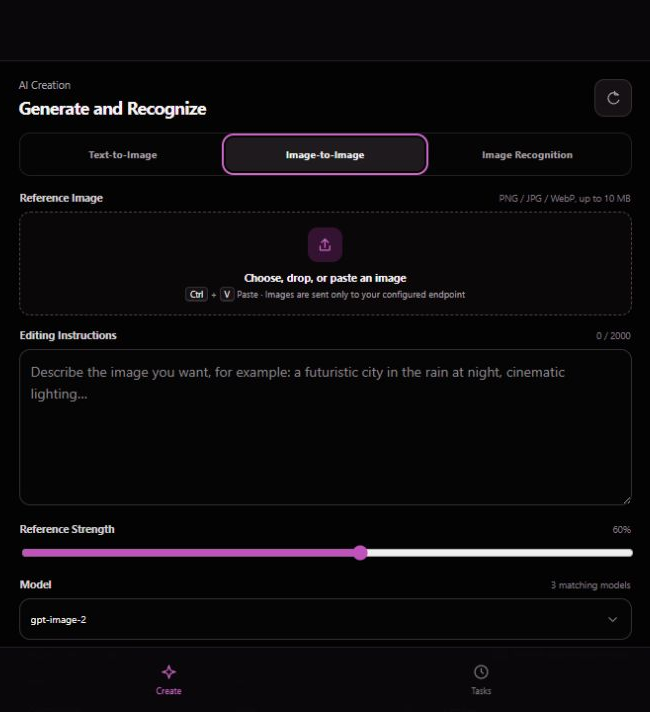
What you should see: The Linghui AI side panel opens with the three workflows shown in the screenshot above.
Chrome does not install a developer ZIP directly. Extract the ZIP before choosing Load unpacked.
Connect an AI Gateway
- Open Settings in the Linghui AI side panel.
- Enter an OpenAI-compatible API base URL. The default is
https://api.openai-hub.net/v1. - Enter your own API key.
- Click Test connection or Save and sync models.
- Choose a model from the synchronized image-capable model list.
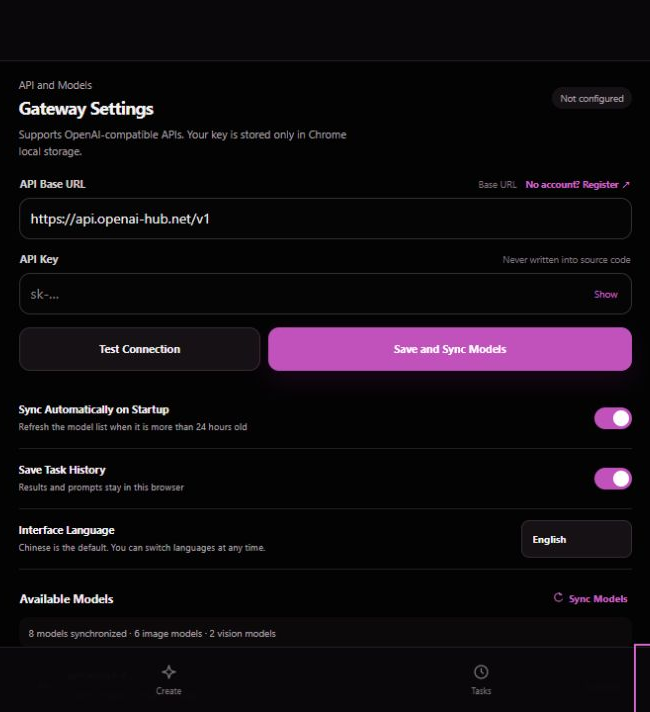
The extension reads models from a compatible GET /models endpoint and labels models that appear suitable for image generation. Gateway compatibility varies, so check your provider’s documentation if a model does not respond.
Text-to-Image
- Open Create.
- Enter a descriptive prompt.
- Select an image model, size, quality, and image count.
- Choose a preset size or enter a custom width and height from 256 to 4096 pixels.
- Click Generate images.
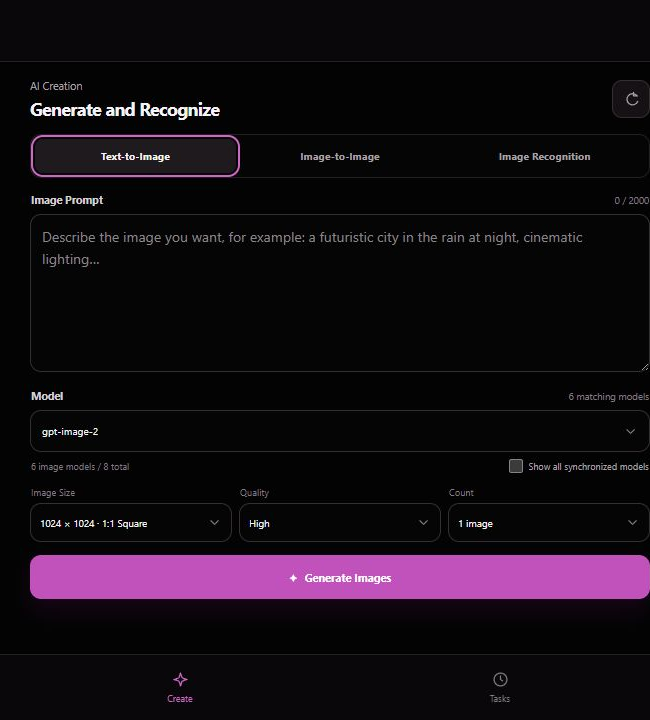
Image-to-Image
- Open Create and switch to Image-to-image.
- Add a reference image by file selection, drag-and-drop, or
Ctrl+Vpaste. - Describe the requested changes.
- Select the model and output settings, then generate.
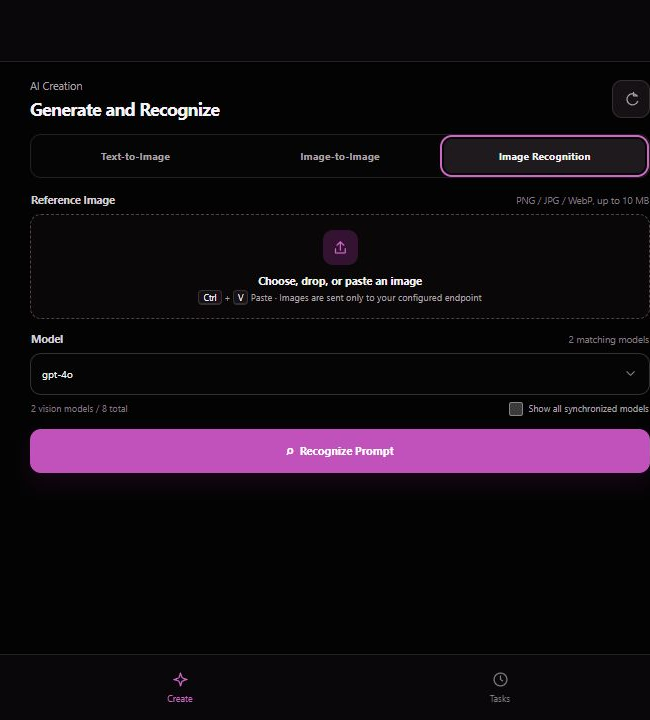
Automatic Image Prompt Recognition
Open Recognize, add an image, and click Recognize prompt. Linghui AI sends the selected image to your configured gateway and returns a reusable visual description, prompt, negative prompt, and detected visual elements when supported by the selected model.
Results, History, and Downloads
- Set the results layout to 1, 2, 3, or 4 columns.
- Enable Save task history to keep recent prompts and generated results locally.
- Reuse a saved prompt from History with one click.
- Download one image or use Download ZIP to package all generated images from a task.
- Clear individual records or all history from the Tasks page.
Troubleshooting
The model list is empty
Confirm the base URL ends with /v1, verify your API key, and click Save and sync models again. The endpoint must provide a compatible GET /models response.
Image generation fails
Check the error panel for the HTTP status and provider message. Try a model that explicitly supports image generation, remove unsupported quality or size options, and confirm that the gateway exposes /images/generations or /images/edits.
An image cannot be pasted
Click the image drop zone first, then use Ctrl+V. Linghui AI only handles clipboard images after an active paste action; it does not continuously monitor the clipboard.
Privacy and Security
Prompts, reference images, generation parameters, and your API key are sent directly to the endpoint you configure. Settings and optional task history are stored locally in Chrome extension storage. Review the provider’s privacy terms before sending sensitive content. Never publish your API key in screenshots, support requests, or public pages.
Read the full Linghui AI Chrome Extension Privacy Policy.
Support
This package is designed for compatible third-party AI gateways. Availability, pricing, model behavior, and provider-side data retention are controlled by the gateway or model provider. For support, contact the site owner through cxgrowthlab.com.