Dreamina AI Downloader (即梦) Extension
Quick answer: Dreamina AI (即梦) No Watermark Downloader is a Chrome and Firefox browser extension for downloading an image or video that is already visible and directly available on your own Dreamina or JIMENG generation page. Open the completed result, select Detect current page, confirm that you own the content or have permission to save it, and select Download original file.
This guide includes the latest Dreamina AI downloader extension download packages, installation instructions, a detailed step-by-step workflow, troubleshooting advice, and answers to common questions for international Dreamina users.
Dreamina AI (即梦) Downloader Extension Download
Choose your browser to download version 1.1.0. Both packages support Dreamina International and JIMENG / 即梦, with English and Simplified Chinese interface options.
Latest version: 1.1.0 · Updated August 27, 2026 · Chrome and Firefox packages.
Download and use the extension only for media you created, own, or are authorized to save. It does not remove a watermark from a rendered file, bypass login, or capture protected streams.
What the Dreamina AI Downloader Does
The extension provides a simple four-step download workflow inside the browser. It is designed for creators who want to save their own finished Dreamina image or video without copying the project URL into an unrelated third-party downloader website.
- Current-page detection: checks the active Dreamina or JIMENG generation page.
- Image and video support: identifies a visible image or HTML5 video with a directly available HTTPS source.
- Media preview: shows the detected file type and preview before download.
- Permission confirmation: keeps the download button disabled until you confirm ownership or authorization.
- One-click download: sends the directly available original file to the browser download manager.
- English and Chinese: switch between English and Simplified Chinese from the language menu.
- Limited website access: runs only on supported Dreamina and JIMENG domains.
The phrase Dreamina no watermark downloader is commonly used in search, but this tool does not erase or alter watermarks. It downloads only the file that the active page directly exposes to the authorized user. If the platform provides only a protected preview or stream, the extension does not bypass that protection.
Before You Start
- Use desktop Google Chrome or Mozilla Firefox.
- Sign in to the Dreamina or JIMENG account that owns the project.
- Wait until the image or video generation is complete.
- Keep the finished result and its preview visible on the page.
- Confirm that you have the right to download and use the media.
Supported websites are dreamina.capcut.com and jimeng.jianying.com. The extension does not request access to unrelated websites.
Step 1: Install Dreamina AI Downloader on Chrome
- Select the Download for Google Chrome button above.
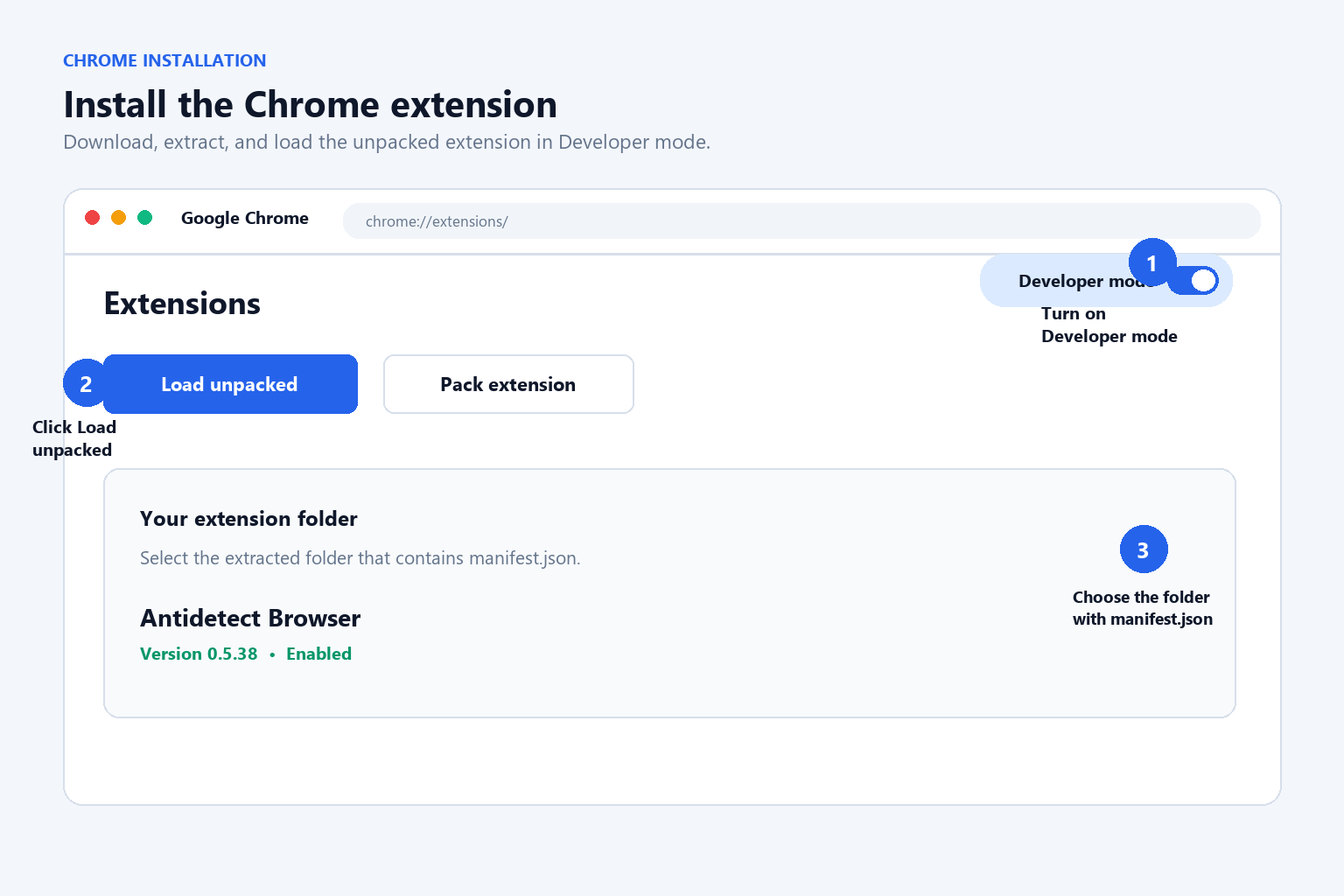
- Extract the downloaded ZIP file to a permanent folder. Do not delete that folder after installation.
- Enter
chrome://extensionsin the Chrome address bar. - Turn on Developer mode in the upper-right corner.
- Select Load unpacked.
- Choose the extracted folder containing
manifest.json. - Open the Extensions menu and pin Dreamina AI (即梦) No Watermark Downloader to the toolbar.
If Chrome reports that the manifest is missing, you probably selected the ZIP file or the wrong folder level. Extract the package first, then select the folder where manifest.json, index.html, and background.js are visible.
Step 2: Install Dreamina AI Downloader on Firefox
- Select the Download for Mozilla Firefox button above.
- Extract the ZIP package.
- Enter
about:debugging#/runtime/this-firefoxin the Firefox address bar. - Select Load Temporary Add-on.
- Open the extracted folder and select
manifest.json. - Pin the extension to the Firefox toolbar if needed.
Firefox note: this package is an unsigned developer build. Firefox removes temporary add-ons after the browser restarts, so you may need to repeat these steps. A signed Firefox Add-ons release can be installed permanently when available.
Step 3: Open Your Dreamina or JIMENG Creation
- Open Dreamina International or JIMENG / 即梦 in the browser where the extension is installed.
- Sign in to the account that created or owns the project.
- Open the generation history, project result, or editor page containing the completed image or video.
- Wait for processing to finish and keep the final preview visible.
- If it is a video, play it briefly so the browser can load its media source.
You do not need to copy or paste the webpage URL. The Dreamina AI downloader checks the active supported tab directly.
Step 4: Detect the Dreamina Image or Video
- Keep the Dreamina result tab active.
- Select the extension icon in the Chrome or Firefox toolbar.
- Select Detect current page.
- Wait while the extension checks for a visible image or video.
- Review the detected media type, page information, and preview.
When a direct source is available, the operation progress advances from Open Dreamina to Detect your media. If no media appears, return to the generation page, make the finished preview visible, and select Detect current page again.
Step 5: Confirm Permission and Download the Original File
- Check that the detected preview matches the creation you intended to save.
- Select I own this content or have permission to download it.
- The main Download original file button becomes active.
- Select the download button.
- Choose a location if the browser displays a Save dialog.
- Open the browser Downloads page with
Ctrl+Jto check progress. - Open the completed file to confirm that the full image or video was saved correctly.
The confirmation step helps prevent accidental downloads of media you do not own. The extension enables the button only when it detects a direct HTTPS file and the permission checkbox is selected.
Step 6: Change the Interface Language
- Open the extension.
- Open the language menu in the upper-right corner.
- Select EN for English or 中文 for Simplified Chinese.
- The labels and operation steps update immediately.
The language preference is saved locally in your browser. Changing the interface language does not modify the downloaded media.
What to Do When No Media Is Detected
A “No media detected yet” message usually means the result is not fully loaded or the page does not expose a direct file at that moment. Try the following:
- Wait until image or video generation is completely finished.
- Open the exact project result instead of a home feed or thumbnail gallery.
- Make the final preview visible and, for video, play it briefly.
- Refresh the Dreamina tab, reopen the result, and detect again.
- Confirm that the active URL belongs to a supported Dreamina or JIMENG domain.
- Use Dreamina’s official export control if the page provides only a protected blob or streaming source.
The extension does not reconstruct HLS streams, bypass DRM, intercept private API responses, or remove access controls. A disabled download button is the expected safe state when a downloadable source is unavailable.
Dreamina Downloader Troubleshooting
The extension says to open a Dreamina page
Make sure the active tab begins with https://dreamina.capcut.com/ or https://jimeng.jianying.com/. Keep that tab active when opening the extension.
The download button stays disabled
First detect the current page successfully. Then select the ownership and permission checkbox. Both conditions are required before the button becomes active.
The wrong image is detected
Close other overlays, open the desired result at full size, and detect again. The extension prioritizes the largest visible image on the active page.
The video is visible but not detected
Play the video briefly and wait for it to load. Some pages do not expose a normal HTTPS video source until playback begins. If Dreamina provides only a protected stream, use the platform’s official export button.
Nothing happens after selecting Download
Open chrome://downloads or about:downloads. Check browser download permissions, available disk space, antivirus notifications, and whether a Save dialog is hidden behind another window.
The extension stopped working after a website update
Reload both the extension and Dreamina page. Browser developer extensions do not update automatically, so return to this article for the latest Chrome or Firefox package.
Privacy and Creator Rights
- No project URL is submitted to a third-party downloader website.
- Language preferences are stored locally in the browser.
- Site access is limited to supported Dreamina and JIMENG domains.
- The extension should be used only for creator-owned or properly licensed media.
- It does not remove watermarks, bypass login, DRM, subscriptions, or platform permissions.
- Dreamina AI (即梦) Downloader is an independent creator utility and is not affiliated with Dreamina, CapCut, ByteDance, or JIMENG.
Frequently Asked Questions
Can I download a Dreamina video without copying a URL?
Yes. Open your own completed project, launch the extension, and select Detect current page. No URL needs to be pasted into another website.
Can the extension download Dreamina images?
Yes. Version 1.1.0 supports both visible images and videos when the page exposes a directly available HTTPS source.
Is this a Dreamina no watermark downloader?
It can save an original file without adding a new watermark when that file is directly provided by the page. It does not erase, alter, or bypass a watermark already applied by Dreamina.
Can it download another person’s creation?
Use the extension only for content you own or are authorized to save. The permission checkbox is required before downloading.
Which browsers are supported?
Separate packages are available for desktop Google Chrome and Mozilla Firefox. Chromium-based browsers may also load the Chrome package, but Chrome is the primary supported Chromium browser.
Where are downloaded files saved?
Files are saved through the browser download manager, normally in your configured Downloads folder unless the browser asks where to save them.
Does the extension upload my creation?
No. The extension reads the media already visible in the active supported tab and passes its direct source to the browser download manager.
Final Checklist
- The latest Chrome or Firefox ZIP package is installed
- You are signed in to the account that owns the creation
- The image or video generation is complete
- The correct Dreamina project result is visible
- The extension detects the intended media
- You have confirmed ownership or download permission
- The downloaded file opens correctly
For most creator-owned projects, the complete workflow is simple: open the finished Dreamina result, detect the visible image or video, confirm permission, and download the directly available original file.
Last updated: August 27, 2026. Version 1.1.0 Chrome and Firefox packages added.