Fingerprint Privacy Helper
A Chrome fingerprint plugin for proxy IP rotation and environment control.
Configure proxy APIs, rotate exit IPs, verify what websites can see, and tune browser fingerprint signals such as WebRTC, timezone, language, geolocation, resolution, and fonts from one focused control panel.
[00:29:01] Tencent IP detection success
[00:29:01] Next extract scheduled
Core Features
What the plugin does
The plugin combines proxy setup, automatic proxy extraction, exit IP checking, and browser fingerprint configuration into a single Chrome extension interface.
Proxy API extraction
Paste a proxy API URL, choose TXT or JSON response format, and let the plugin extract one proxy at a time on your selected interval.
Exit IP check
After a proxy is applied, the plugin checks the browser-visible exit IP and updates the Current IP panel so you can confirm what websites see.
WebRTC protection
The extension uses Chrome privacy controls to reduce WebRTC IP leakage risk while a proxy profile is active.
Manual proxy mode
Configure HTTP, HTTPS, or Socks5 proxy details manually, including host, port, username, and password when authentication is required.
Language profiles
Switch the plugin interface language and configure browser language signals based on IP, real settings, or custom values.
Fingerprint signals
Adjust timezone, geolocation, resolution, and font behavior to create a more consistent test environment for browser sessions.
Annotated Screenshots
Clear operation map with detailed zoom views
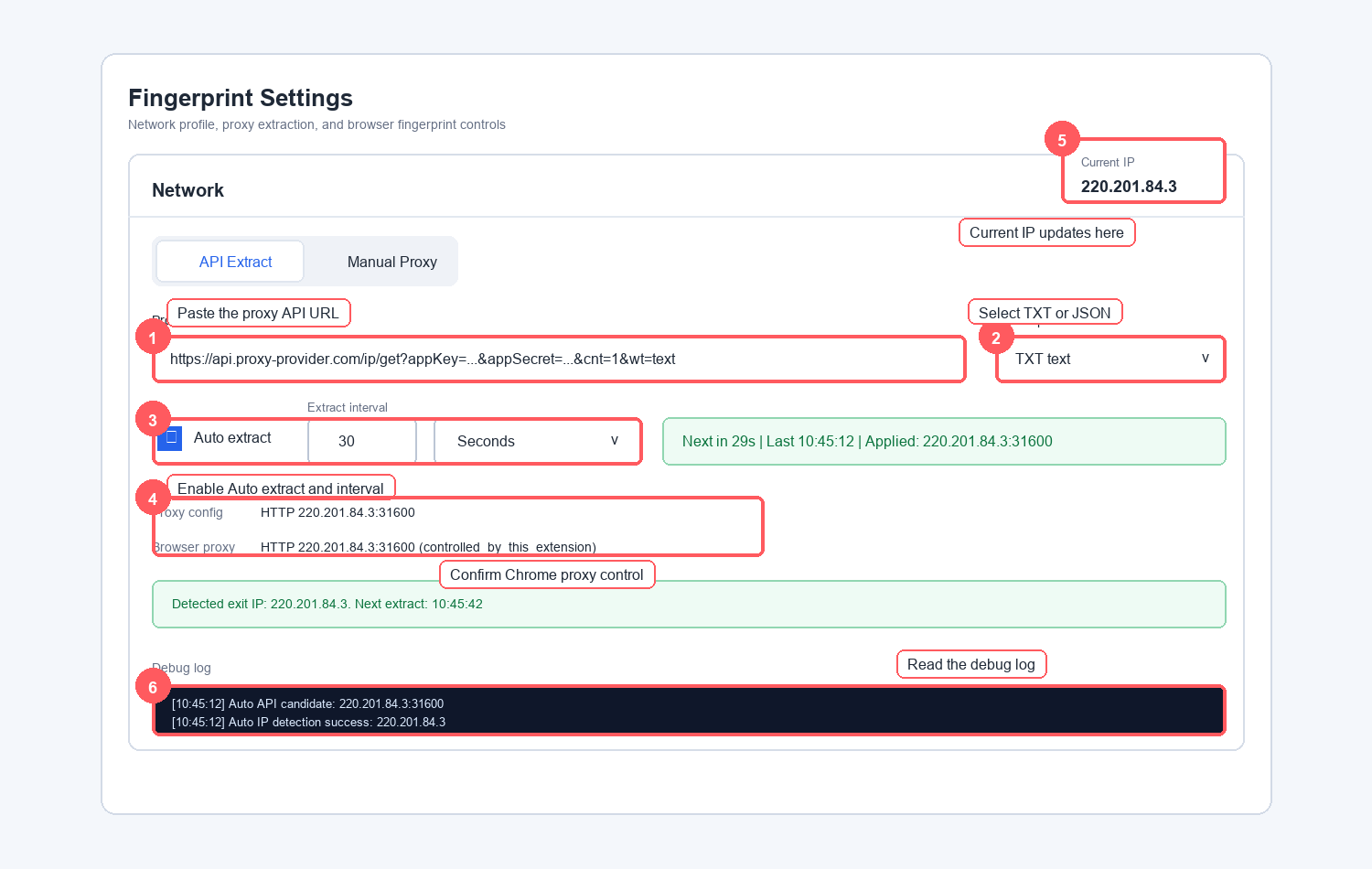
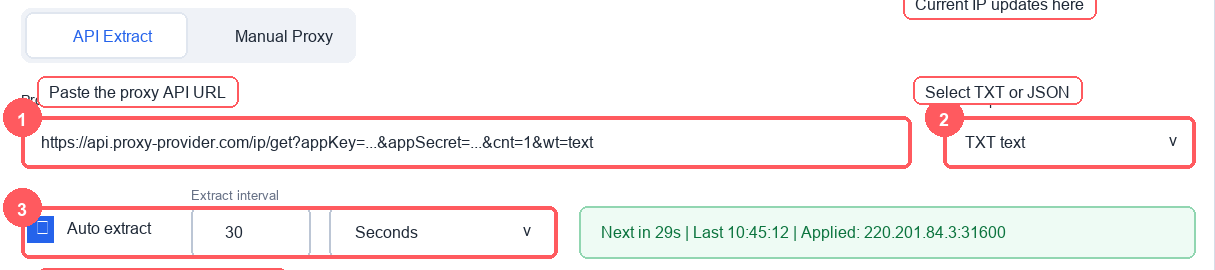
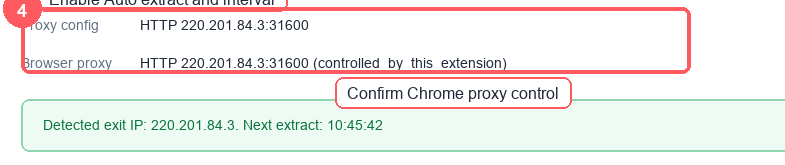
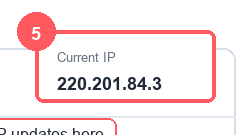
The main screenshot shows the full API extraction workflow. The zoom cards below it make the important controls easier to read.

How to read the markers
1 is the proxy API endpoint. 2 is the API response type. 3 is the auto extraction interval. 4 confirms Chrome proxy control. 5 shows Current IP. 6 is the debug log.
Detailed Setup Guide
How to use API proxy extraction
Follow these steps when you want the plugin to automatically pull a proxy from your provider, apply it to Chrome, and show the current browser exit IP.
Open the plugin settings page
Open Chrome, click the extension icon, then open the plugin configuration page. Use the Network section for proxy setup.
- Reload the extension from chrome://extensions after installing or updating it.
- Disable other proxy/VPN extensions if proxy control shows controlled_by_other_extensions.
- Keep the settings page open while testing so the debug log stays visible.
Select API Extract mode
Click API Extract in the Network section. This mode is for proxy providers that return proxies through an API endpoint.
- Use this mode for TXT or JSON proxy extraction APIs.
- Use Manual Proxy only when typing host, port, username, and password yourself.
Paste the proxy API URL
Paste the full API URL into the Proxy API URL field. The plugin keeps extraction simple by using one proxy at a time.
- Keep cnt=1 or let the plugin normalize the API to one result.
- If the URL contains appKey and appSecret, the plugin can use them for proxy authentication when needed.
- The URL must return IP and port data, not a normal webpage.
Choose the API response format
Select the response format that matches your provider.
- Choose TXT text for values like 220.201.84.3:31600.
- Choose JSON when the API returns structured host, port, IP, or proxy arrays.
- If extraction fails, check the debug log response preview.
Enable Auto extract and set the interval
Turn on Auto extract, then choose how often the plugin should pull a new proxy.
- Use seconds for short-lived proxies or fast rotation tests.
- Use hours or days for stable sessions.
- Use long-term no change when you want to keep the current proxy.
Confirm the proxy was applied
Check Proxy config and Browser proxy after extraction.
- controlled_by_this_extension means this plugin controls Chrome proxy settings.
- controlled_by_other_extensions means another extension is taking over.
- If Browser proxy still shows Direct or System, reload the extension and check conflicts.
Check the Current IP panel
After the proxy is applied, the plugin performs a quick IP check and updates Current IP.
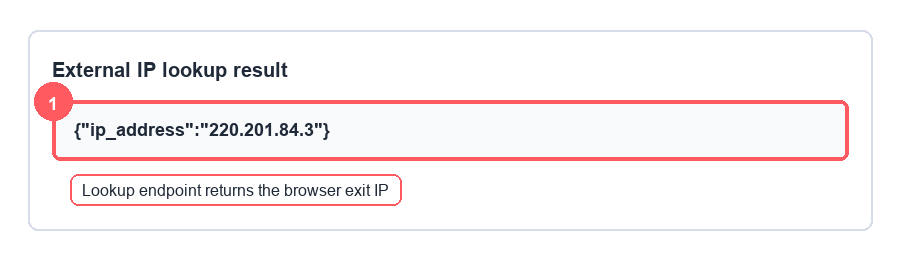
- If Current IP matches the proxy or external lookup result, the proxy is active.
- If it still shows your local public IP, the proxy did not take effect.
- If detection fails, the plugin keeps the extracted proxy and tries again later.
Use the debug log when testing
The debug log shows API request, response preview, candidate proxy, browser proxy status, IP detection result, and next scheduled extraction time.
- Copy the debug log when troubleshooting a provider or authentication issue.
- HTTP 407 usually means proxy authentication is required.
- HTTP 403 or fetch errors can mean the lookup endpoint blocked the current proxy.
Operation Flow
What happens after Auto extract is enabled
Manual Proxy
How to use manual proxy mode
Manual mode is useful when you already know the proxy host and port or when you want to test a fixed proxy before using API mode.
- 1. Open Network and click Manual Proxy.
- 2. Select HTTP, HTTPS, or Socks5.
- 3. Enter the proxy host and port exactly as provided.
- 4. Enter username and password if authentication is required.
- 5. Click Check network to verify the browser exit IP.
Exit IP
How to know whether the proxy is working
The exit IP is the IP address that websites can see. If the Current IP or an external lookup page shows the proxy IP, the proxy is active.
WebRTC
Why WebRTC protection matters
A proxy changes normal browser traffic, but WebRTC can expose IP information through a different browser path. The plugin limits WebRTC behavior to reduce leak risk.
FAQ