TikTok Video Downloader Chrome Extension: Complete How-To Guide
Updated: August 11, 2026
Looking for a TikTok video downloader Chrome extension? ClipScope helps you track views, likes and comments, copy the current video URL and download an accessible video source directly from the TikTok page. This complete guide explains how to install the extension, use it on detail pages and recommendation feeds, keep video data synchronized and fix failed downloads.
Important: ClipScope is an independent extension and is not affiliated with TikTok. Download and use only videos that you own or are authorized to save. The extension does not bypass access controls or guarantee watermark removal.
What ClipScope can do
- Show the current video’s title, author and available views, likes, comments, shares and saves.
- Refresh the panel when you move from one TikTok video to the next.
- Work on video detail pages and recommendation feeds.
- Show a compact control next to the video instead of requiring a separate downloader website.
- Copy the current video URL for reference or sharing.
- Download a video source provided by the page after you click the download control.
- Switch the interface between English, Chinese and other supported languages.
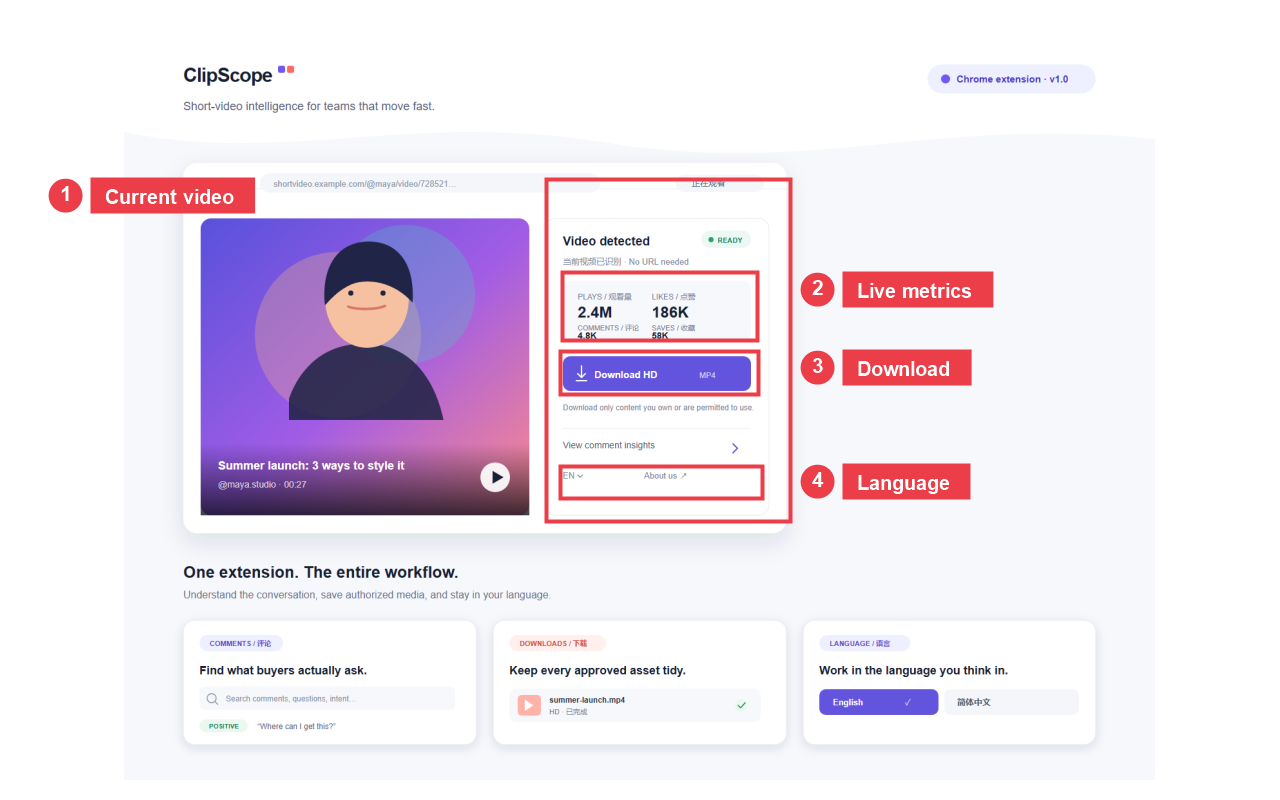
Quick visual guide
The numbered labels below point to the controls used in the normal workflow.
Step 1: Install and pin the extension
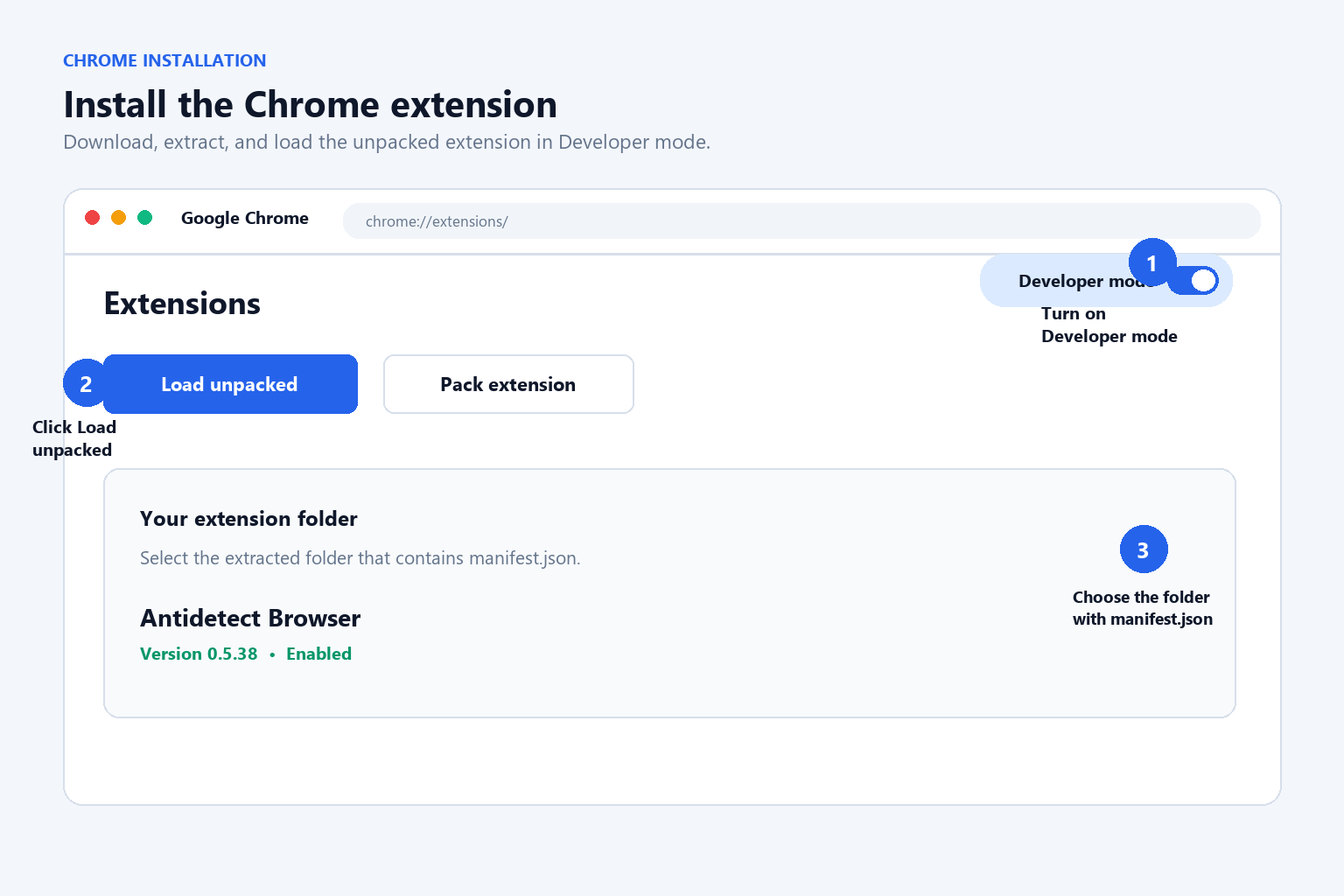
- Open the ClipScope listing in the Chrome Web Store or load the extension package in Chrome’s extension manager during development.
- Select Add to Chrome and review the requested permissions.
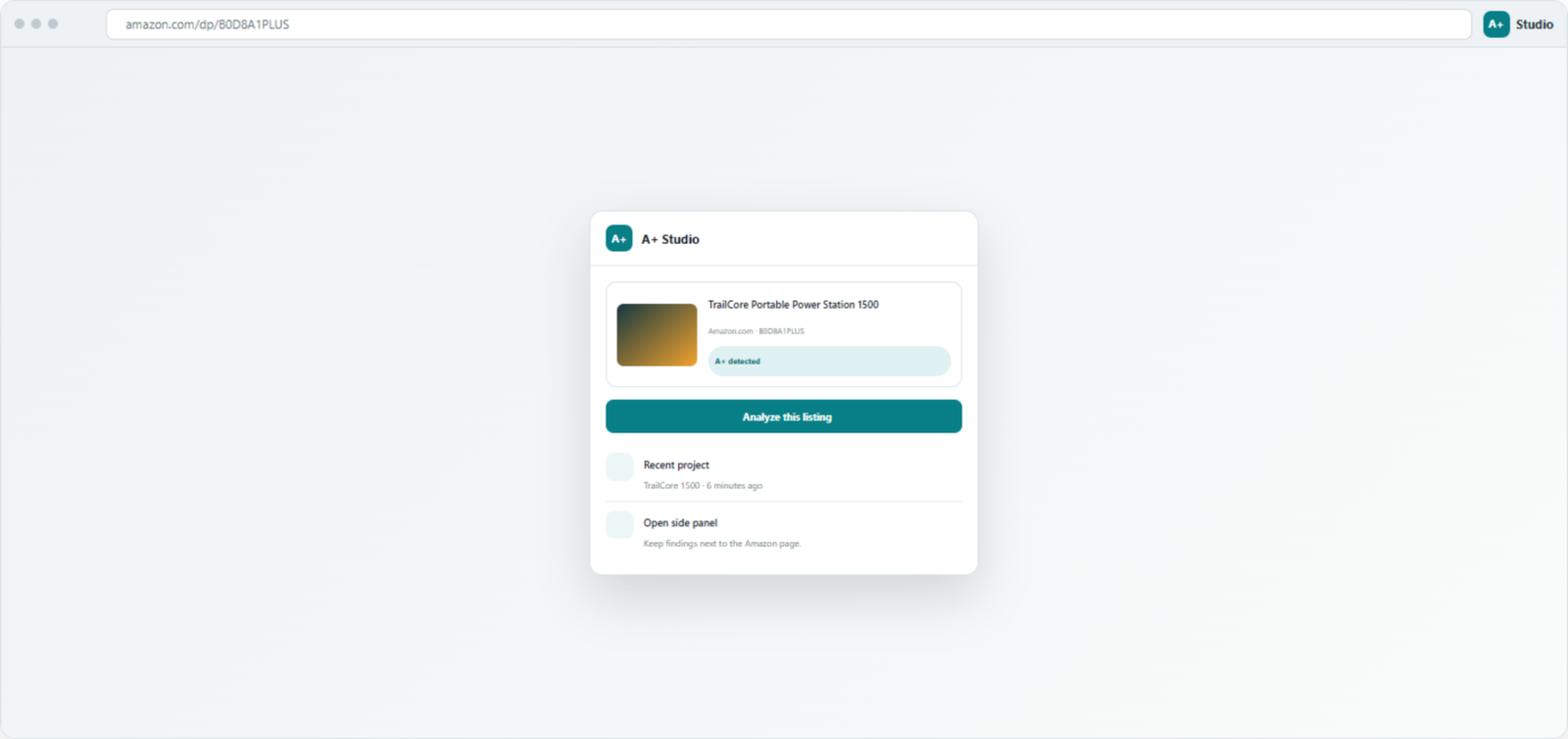
- Open Chrome’s Extensions menu and pin ClipScope so its icon is easy to reach.
- Open a TikTok page in a normal tab. ClipScope is designed to run on TikTok pages only.
Step 2: Open the video you want to inspect
You can use either of these workflows:
- Video detail page: open a specific TikTok video page. The ClipScope panel will identify the current video after the page finishes loading.
- Recommendation feed: open the For You or another recommendation feed, play the visible video and wait for the panel to update. You do not need to open the creator’s profile first.
Play the video for a moment before trying to download it. The page must expose a playable source before ClipScope can prepare a download.
Step 3: Read the current video’s data
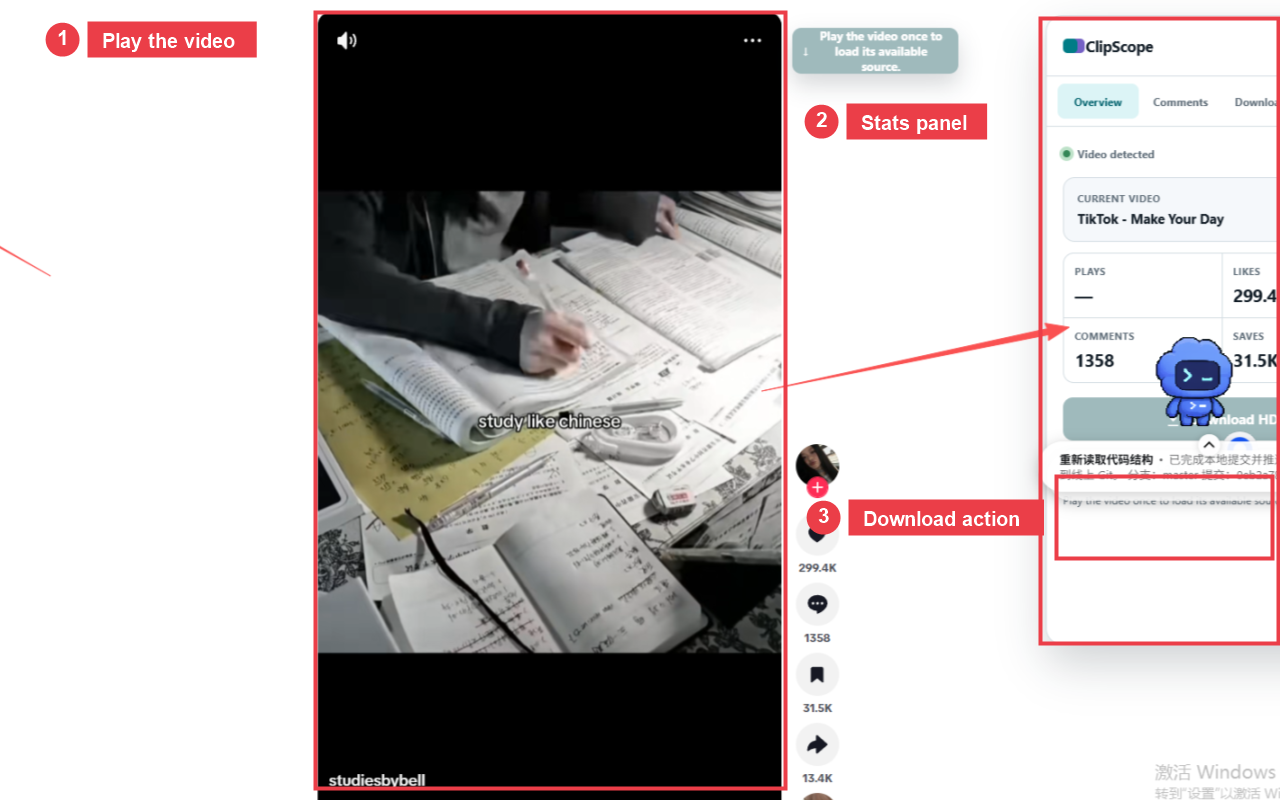
When the status shows that a video has been detected, check the panel before taking action:
- Confirm the title and author match the video currently visible on screen.
- Review the available views, likes, comments, shares or saves. Some metrics may be unavailable when TikTok does not expose them on the page.
- Use the Comments or Insights section when you want to review visible comment themes or engagement context.
- If the title belongs to the previous video, wait briefly while the feed finishes changing, then confirm the title again.
Step 4: Download the current video
- Keep the target video on screen and play it until the video source has loaded.
- Look for the small ClipScope download control beside the video or in the overview panel.
- Check the title one more time so you do not download the previous feed item.
- Click Download once. The browser will save the source through Chrome’s normal download manager.
- Open Chrome’s Downloads page to confirm the file and its location.
Do not refresh the page or switch videos while the source is being prepared. If a new video appears, wait for its title and metrics to refresh before clicking Download again.
Step 5: Move to another video without refreshing
- Use TikTok’s next-video gesture, mouse wheel or feed navigation.
- Wait for the new video to become visible and start playing.
- Confirm that the panel title, author and metrics have changed to the new item.
- Only then click Download for the new video.
The key rule is simple: the visible video title must match the panel title before every download. This prevents saving a source from the previous feed item.
Step 6: Copy the current video URL
- Keep the target video active.
- Click Copy current video URL in the ClipScope panel.
- Paste the result into a note, browser address bar or message.
The copy control is for identifying or sharing the current page. The normal ClipScope download flow does not require pasting the URL into a third-party downloader website.
Step 7: Review comments and engagement context
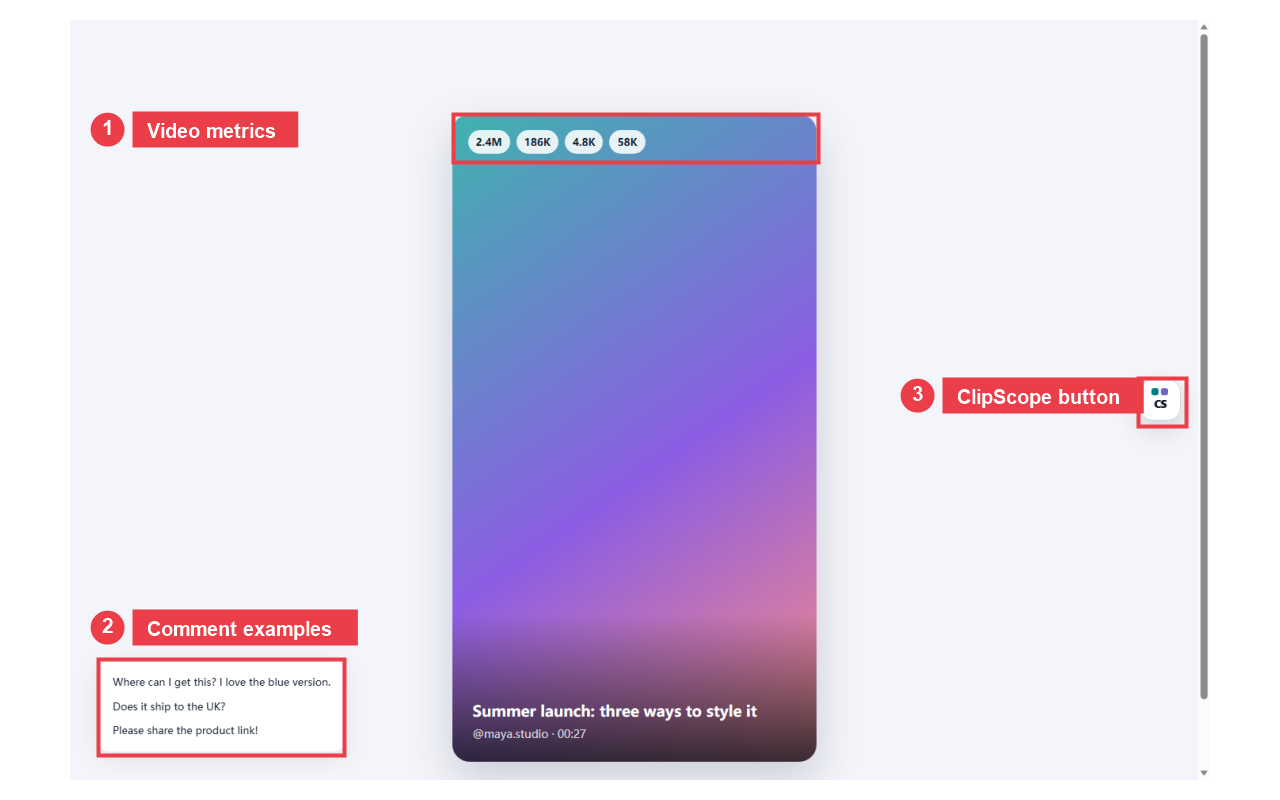
Use the Comments or Insights view to understand what viewers are asking about. The panel can show page-provided comment and engagement information when it is available. The labels in the image below highlight the typical areas:
Step 8: Change the interface language
- Open the language selector in the ClipScope panel or settings area.
- Choose English, Chinese or another available language.
- The selected language is saved locally in Chrome and will be used the next time the panel opens.
Step 9: Troubleshooting
The ClipScope panel does not appear
- Confirm that the address begins with a TikTok domain and that the tab is not a restricted browser page.
- Reload the TikTok tab, then play the video once.
- Open the Extensions menu and confirm ClipScope is enabled.
- If the page has multiple video elements, scroll until the intended video is the active visible item.
The title or statistics are not changing
- Wait for the next video to finish loading before clicking Download.
- Reload once if TikTok changed the feed without exposing a new media request.
- Check that the panel title matches the visible video title.
The download fails
- Play the video first so the page exposes a usable source.
- Try again after the status changes to video detected or ready.
- Do not click repeatedly; wait for Chrome’s download notification.
- Some videos may not provide a downloadable source, may require an active session or may be restricted by the platform.
The downloaded file is invalid
- Delete the incomplete file from Chrome’s Downloads page.
- Return to the TikTok page, play the video again and wait for the panel to refresh.
- Confirm the title matches the current video, then try one more download.
Privacy and permissions
ClipScope processes page-provided video metadata in the browser. It stores the selected interface language and local preferences in Chrome storage. A download starts only after the user clicks the download control. The extension does not request TikTok passwords, does not maintain user accounts and does not upload video files to a ClipScope server.
For the complete details, read the ClipScope Privacy Policy.
Copyright and responsible use
Always follow TikTok’s terms, copyright rules and privacy rights. Download only content that you own or have permission to save, and do not redistribute someone else’s work without authorization.
Need help?
For questions or feedback, visit About ClipScope. ClipScope is an independent tool and is not an official TikTok product.