GlowNote: Xiaohongshu Video Downloader Guide
GlowNote is a Xiaohongshu and RedNote video downloader and insights tool for Chrome and Firefox. This step-by-step guide shows how to open a supported video page, view public play, like, and comment counts, download directly available media, change the interface language, and configure privacy settings.
Important: GlowNote is an independent browser extension. It is not affiliated with, endorsed by, or sponsored by RedNote or Xiaohongshu. Download only content you own or are allowed to save. GlowNote does not bypass DRM, login requirements, signed-session protections, or platform restrictions.
Download GlowNote for Chrome or Firefox
Choose your browser package below. Extract the ZIP file before installing.
Version: 0.2.2 Release date: August 27, 2026
Before You Start
- Install GlowNote from the package above. Chrome and Chromium users can load the unpacked extension; Firefox currently uses a temporary development add-on.
- Open a public Xiaohongshu or RedNote page with a visible video.
- Start or pause the video as usual. GlowNote appears as a compact panel beside the player; select the round GlowNote launcher if the panel is hidden.
Steps 1–3: Read Video Insights, Download Media, and Change Language
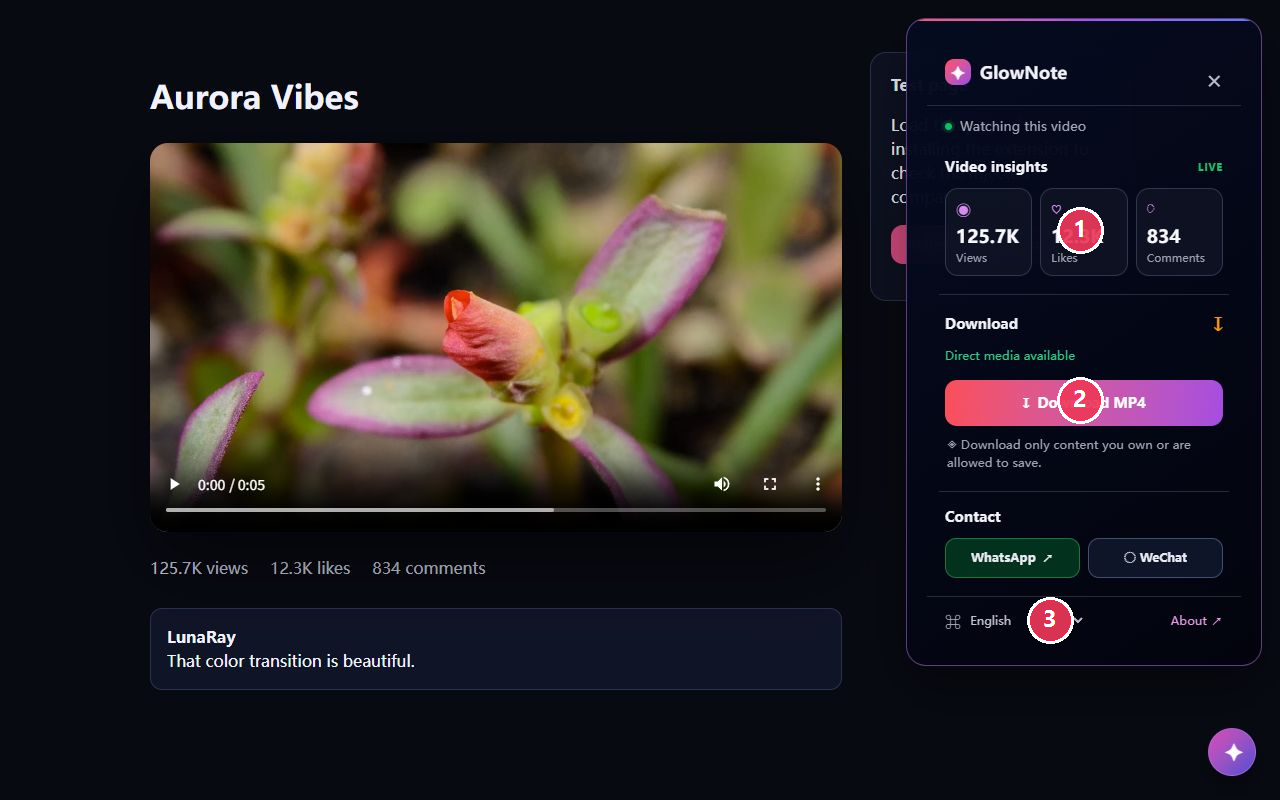
The numbered markers in the image below correspond to these controls.
- Read visible insights. The Video insights section shows views, likes, and comments only when those values are available on the page. If a value cannot be read, GlowNote leaves it out instead of estimating it.
- Download when direct media is available. Look for the green status message Direct media available. Select Download MP4 to begin a browser download. The extension rechecks the current page-exposed media source before starting.
- Change the panel language. Open the language menu at the bottom of the panel and select your preferred interface language. GlowNote includes 29 mainstream language options, including English, Simplified Chinese, Traditional Chinese, Spanish, Hindi, Arabic, Japanese, Korean, and more.
Install the Chrome Extension
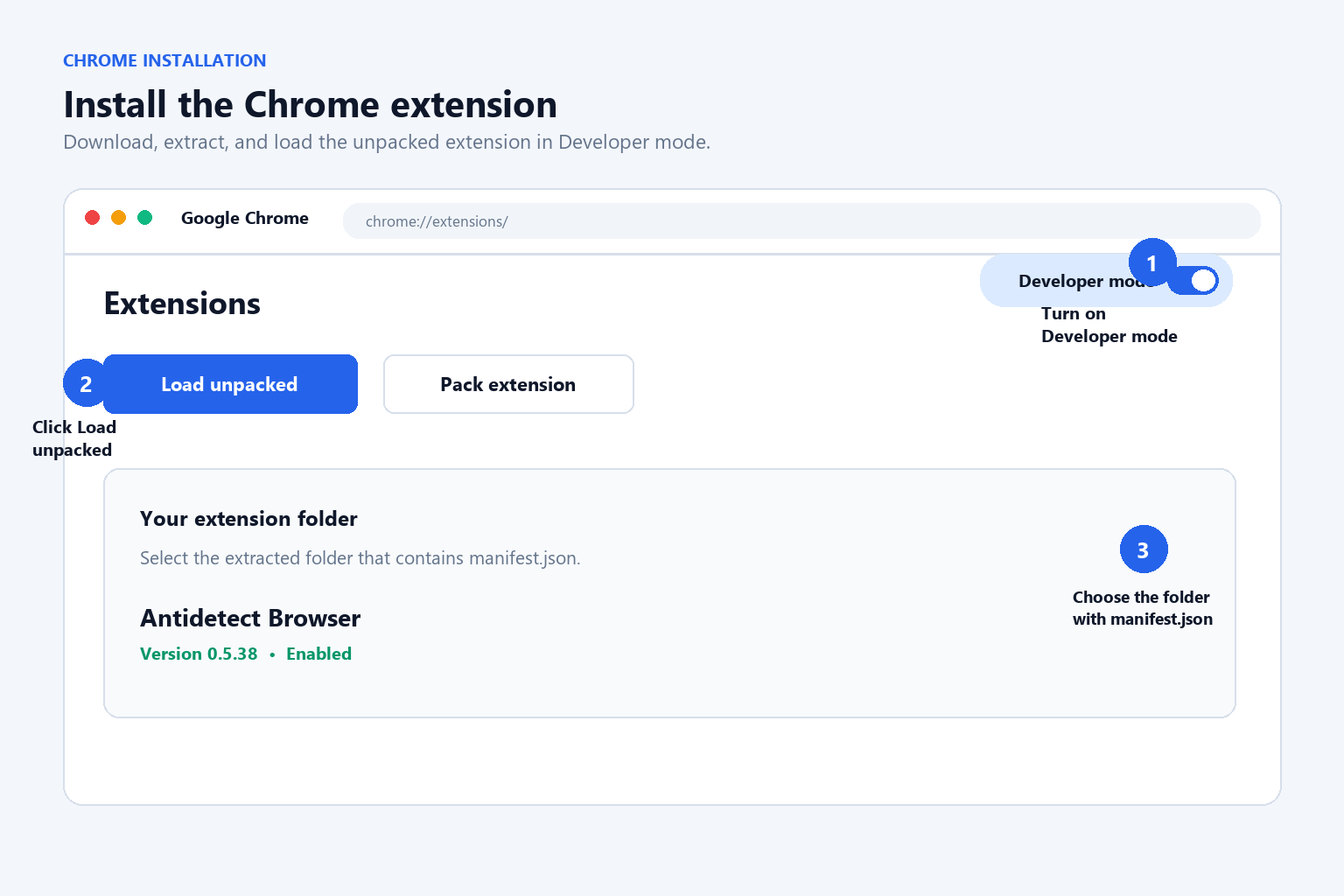
- Download the Chrome ZIP package above and extract it to a permanent folder.
- Open
chrome://extensionsin Google Chrome or a Chromium-based browser. - Turn on Developer mode, select Load unpacked, and choose the extracted GlowNote folder.
- Open a Xiaohongshu or RedNote video page and click the GlowNote toolbar icon.
Install the Firefox Extension
- Download and extract the Firefox ZIP package.
- Open
about:debuggingin Firefox and select This Firefox. - Choose Load Temporary Add-on, then select
manifest.jsonfrom the extracted folder.
This Firefox package is a development build rather than a signed Mozilla Add-ons Store release. Temporary add-ons may need to be loaded again after Firefox restarts.
When the Download Button Is Unavailable
If the panel says No directly available media on this page, the current page has not exposed a direct HTTP(S) media file that GlowNote can use. This can happen when a player uses an opaque blob: or MediaSource stream, or when the platform does not provide a direct source. Reload the page and play the video once; if the button remains unavailable, GlowNote intentionally does not offer a workaround.
Steps 4–5: Contact Through WhatsApp or WeChat
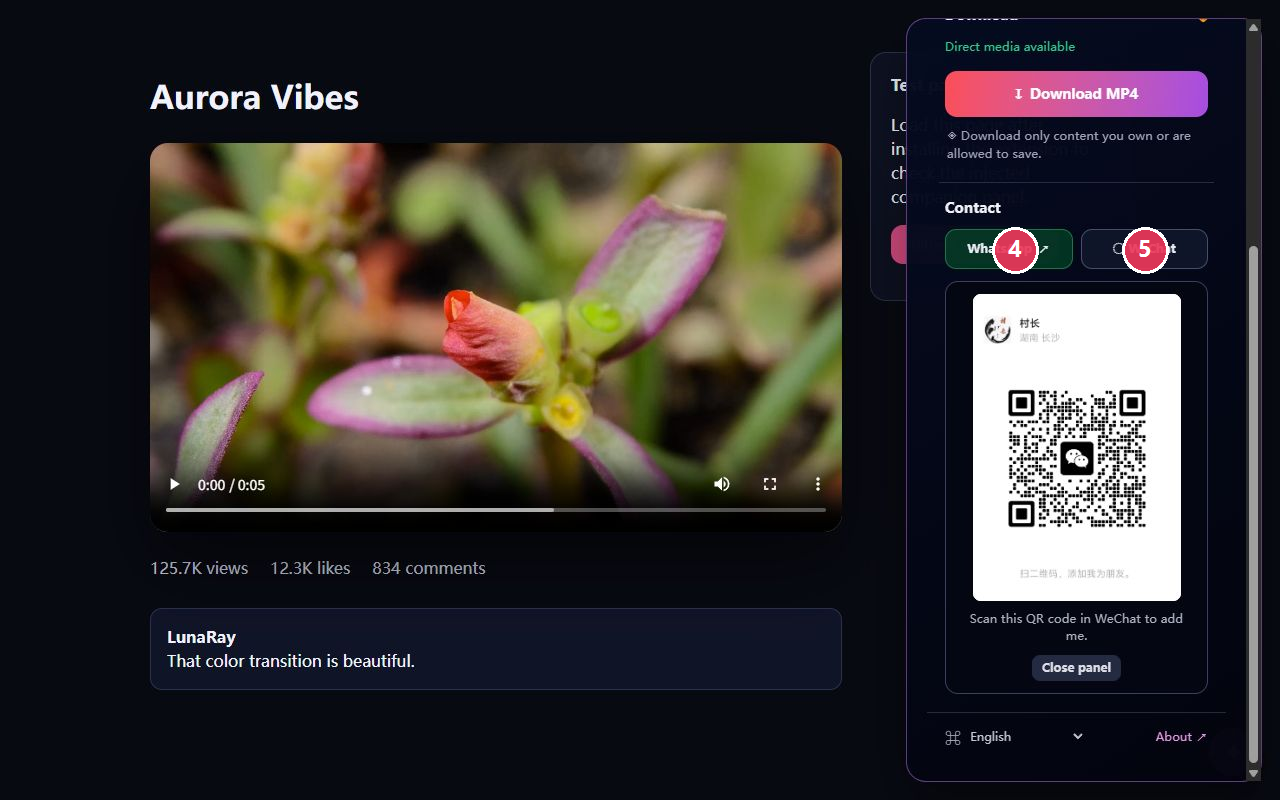
- Open WhatsApp. Select the WhatsApp button to open the contact link in a new tab or the WhatsApp app.
- Open the WeChat QR card. Select WeChat to expand the in-extension QR card, then scan it with WeChat.
Steps 6–8: Configure GlowNote Settings
Open the extension options page from the browser toolbar menu to manage preferences across supported video pages.
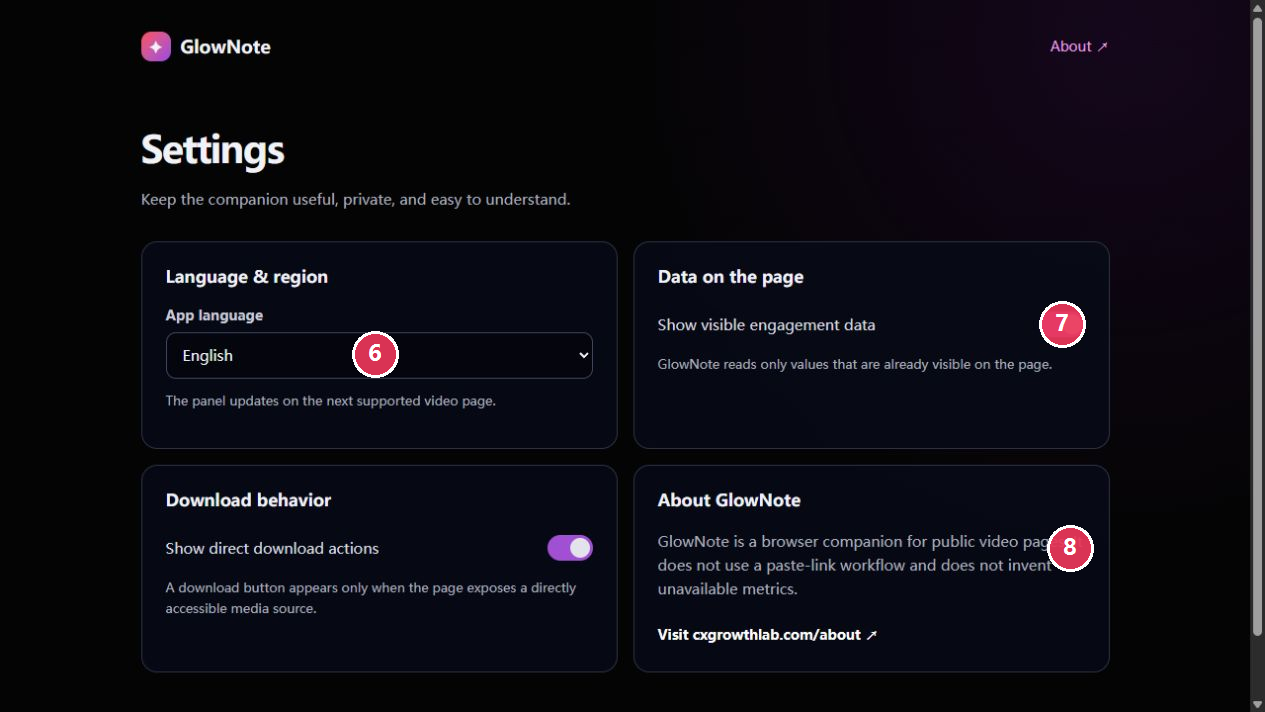
- Set your interface language. Choose a language; your preference is saved locally in your browser.
- Control visible engagement data. Turn Show visible engagement data on or off to display page-provided play, like, and comment values.
- Review product information. Use the About GlowNote link to visit CX Growth Lab and review product information and the current privacy policy.
Download and Privacy Checklist
- Select download only for media you own or are authorized to save.
- GlowNote downloads only a directly accessible media source; it does not remove watermarks or bypass access controls.
- Language and feature preferences are stored locally in the browser.
- GlowNote does not collect or sell browsing history, account credentials, or viewing activity.
- For complete details, read the GlowNote Privacy Policy.
Need Help?
If you have a product question, use the WhatsApp or WeChat controls inside GlowNote, visit CX Growth Lab About, or browse browser extension downloads.