Instagram Reels Downloader for Chrome & Firefox
PulseFind is a lightweight Instagram video downloader extension for Chrome and Firefox. It adds a download button beside the current Reel when Instagram exposes a complete, playable public video source. You do not need to copy a URL or use a separate downloader website.
Use PulseFind to download Instagram Reels and other supported public Instagram videos that you own or are authorized to save. The extension does not access private posts, bypass login or access controls, remove watermarks, or download DRM-protected media.
PulseFind features
- One-click Instagram video download: download the current Reel from the button shown beside the video or in the extension popup.
- Live video detection: the status follows the Reel currently on screen and updates as you move to another video.
- Ready-state protection: the Download button stays gray until a complete source is detected, reducing empty or damaged downloads.
- Caption-based filenames: when Instagram exposes a caption, PulseFind uses a cleaned version for the filename; otherwise it uses a safe fallback.
- Multilingual interface: switch languages from the popup, including English and Simplified Chinese.
- Diagnostics: copy technical status details when a source is unavailable so support can identify the page state.
- Lightweight and local: settings are stored locally and the extension only requests access needed for supported Instagram pages and browser downloads.
Install PulseFind in Chrome
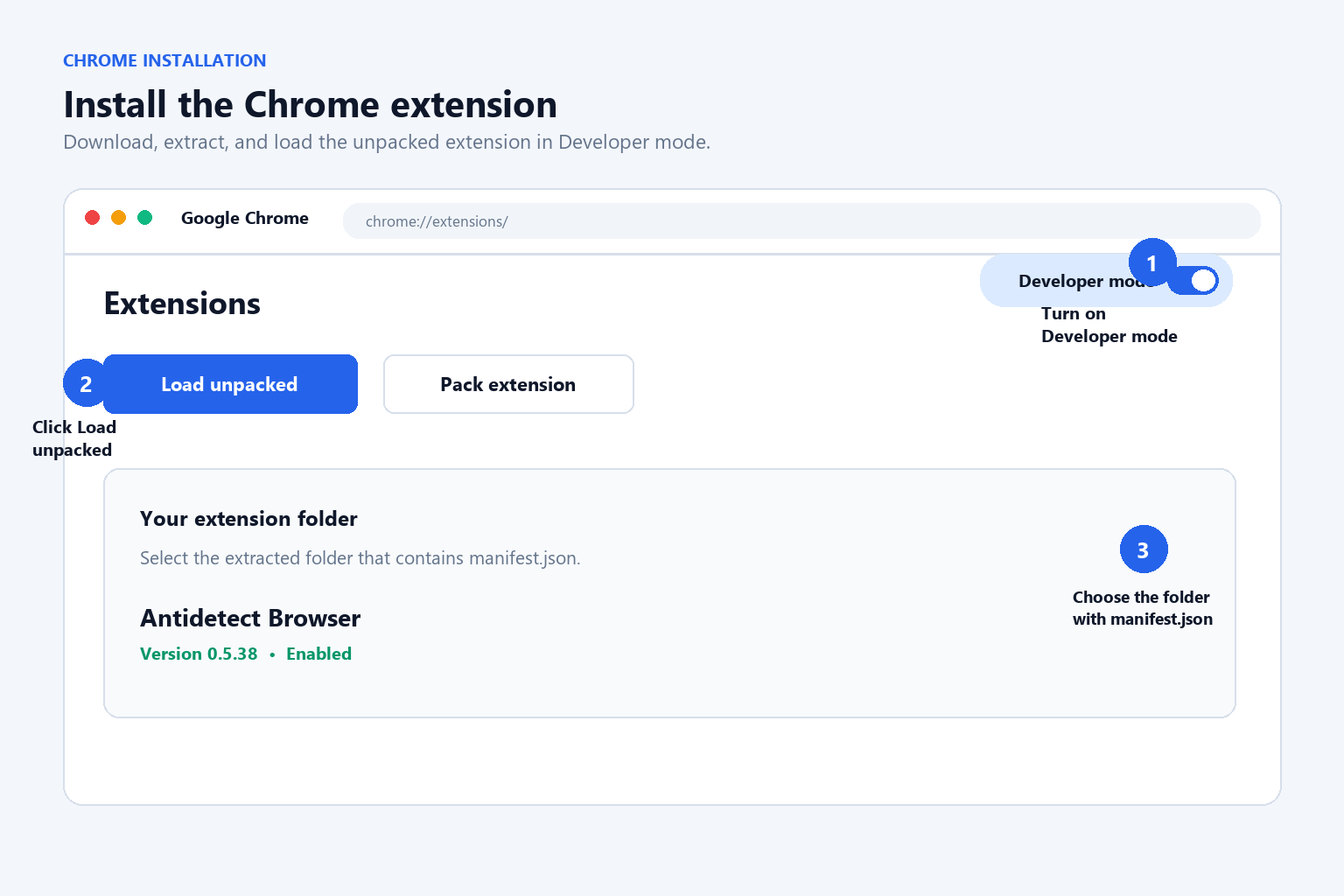
- Download the Chrome ZIP package above and unzip it to a folder.
- Open
chrome://extensionsin Chrome. - Turn on Developer mode.
- Choose Load unpacked and select the unzipped PulseFind folder.
- Pin PulseFind to the Chrome toolbar for quick access.
Install PulseFind in Firefox
- Download the Firefox ZIP package above and unzip it.
- Open
about:debugging#/runtime/this-firefoxin Firefox. - Click Load Temporary Add-on.
- Select the
manifest.jsonfile inside the unzipped PulseFind folder. - Keep the Firefox window open while testing the temporary add-on. For a permanent installation, use a signed AMO release when available.
How to download an Instagram Reel
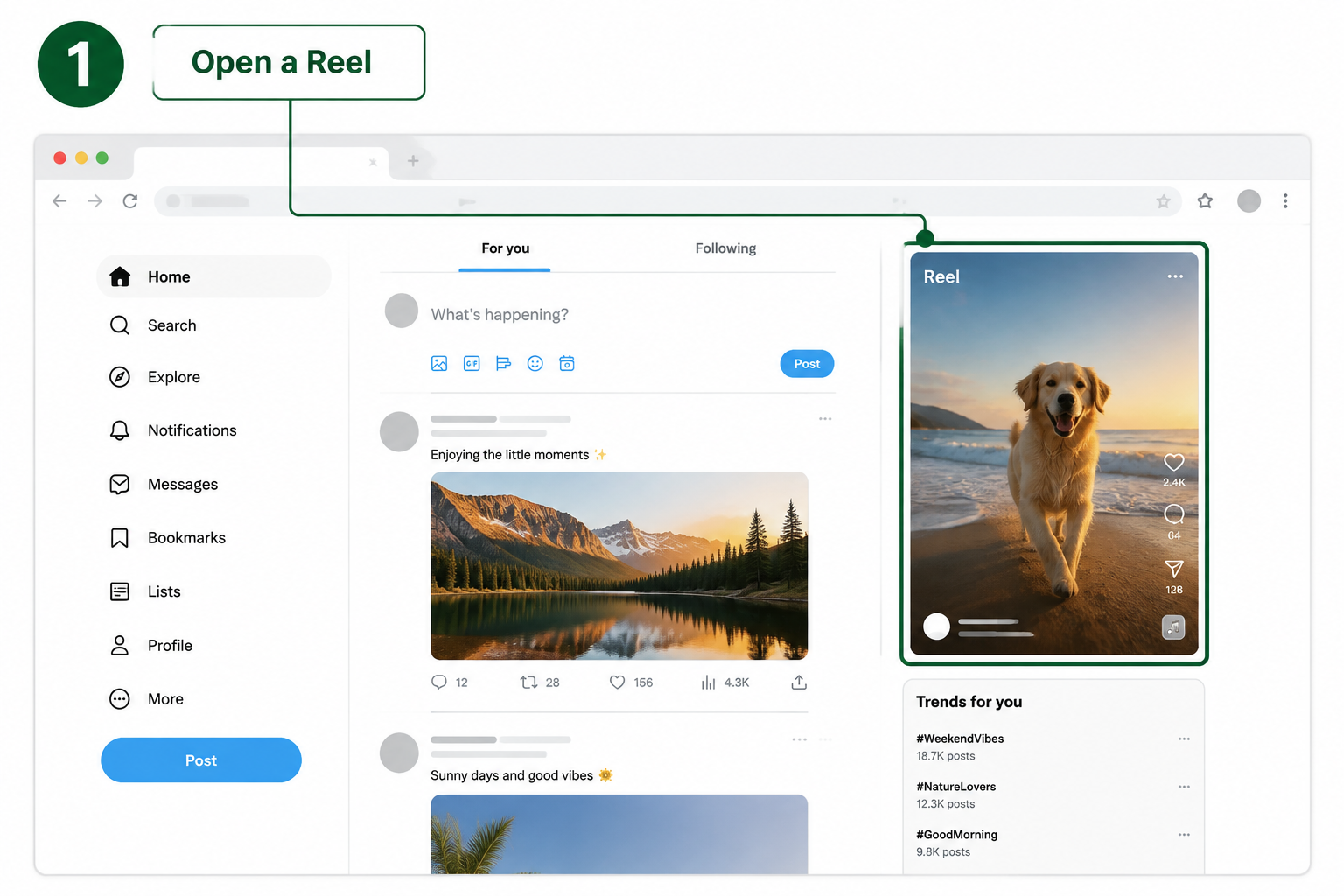
Open Instagram and select a public Reel that you are allowed to save. Enter the individual Reel detail page and let the video play briefly.
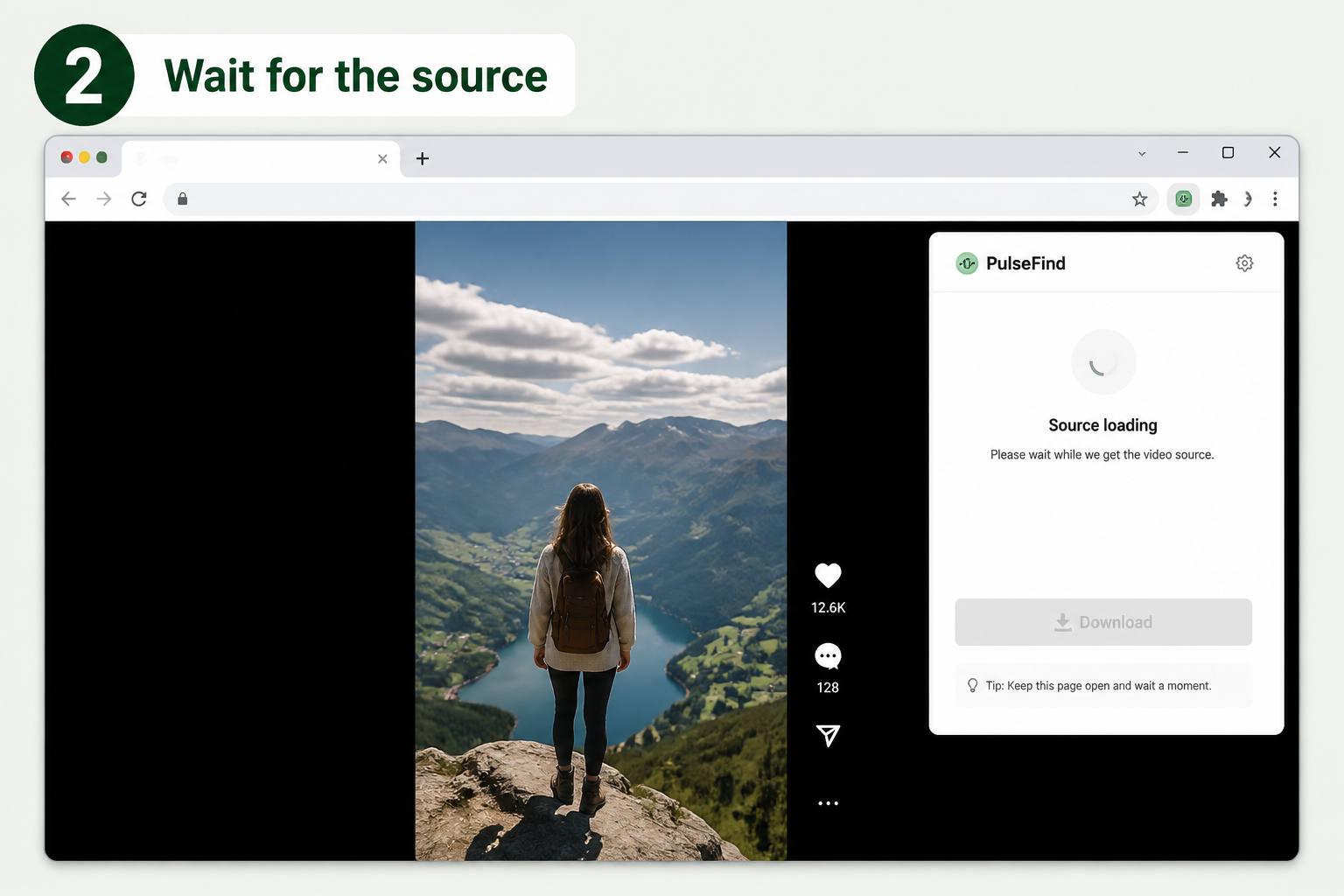
PulseFind tracks the video currently visible. While the source is loading, the download control remains gray. This is expected. When the status changes to Video ready, the button becomes active.
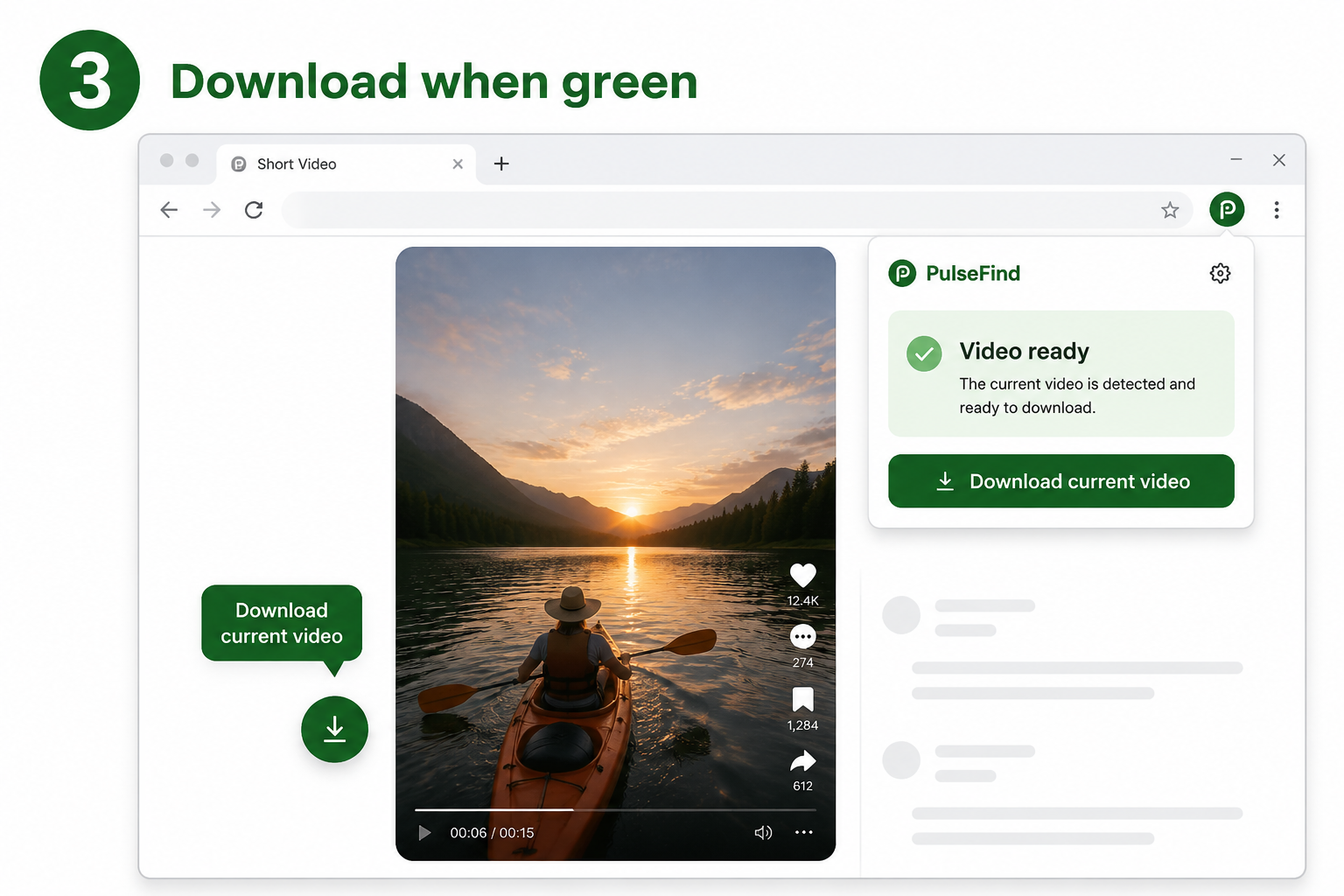
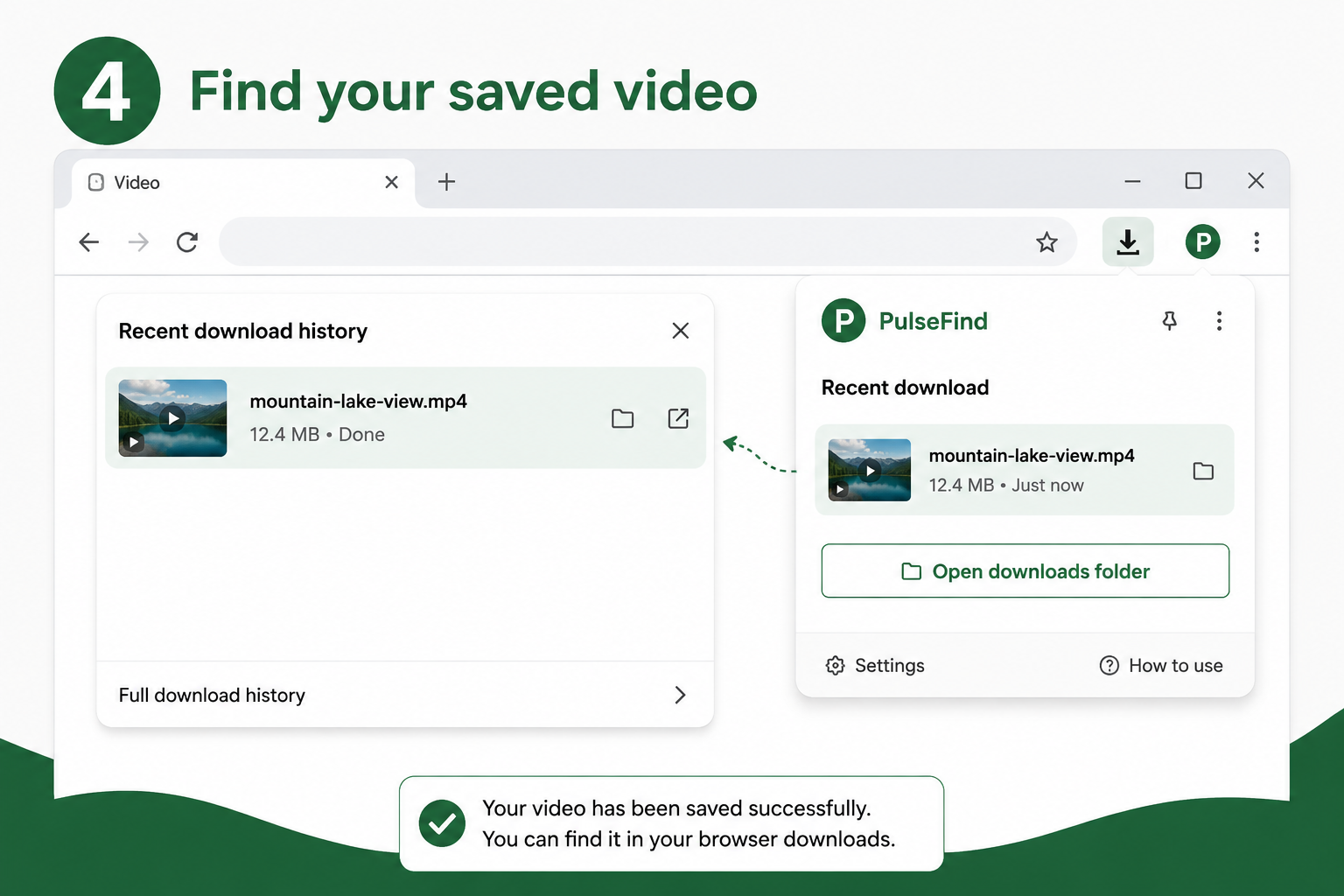
Click Download current video in the popup, or use the compact button beside the Reel. The browser then saves the file to its normal Downloads folder.
Instagram Reels Downloader FAQ
Why is the Download button gray?
Open the individual Reel detail page and let the video play briefly. PulseFind keeps the button disabled until it detects a complete source for the Reel currently on screen.
Does PulseFind update when I move to another Reel?
Yes. Keep the new Reel visible for a moment while PulseFind refreshes the active source. You normally do not need to reload the Instagram page.
Why is a downloaded Instagram video empty or damaged?
Cancel the old download, return to the current Reel detail page, and wait for the Video ready status before trying again. Download availability depends on the complete source Instagram provides to the page.
What should I do if no video source is found?
Open the PulseFind popup and select Copy diagnostics. Include the diagnostic result when contacting support so the current page and source status can be checked.
Responsible use
Only download public Instagram content that you own or have permission to save. Respect copyright, creator rights, and Instagram’s terms. PulseFind is an independent Chrome extension and Firefox add-on and is not affiliated with Instagram or Meta.
For data practices, read the PulseFind Privacy & Data Use Notice. For product information, visit About CX Growth Lab.