Amazon A+ Studio User Guide: From Amazon Analysis to Listing Images and A+ Content
Amazon A+ Studio is an independent Chrome extension for Amazon sellers. It helps you analyze a product listing, learn the visual structure of selected competitor A+ Content, and create listing images and A+ assets for your own product.
This guide covers the complete workflow from installation to download.
1. Install the extension
For Chrome Web Store users, open the extension listing and click Add to Chrome.
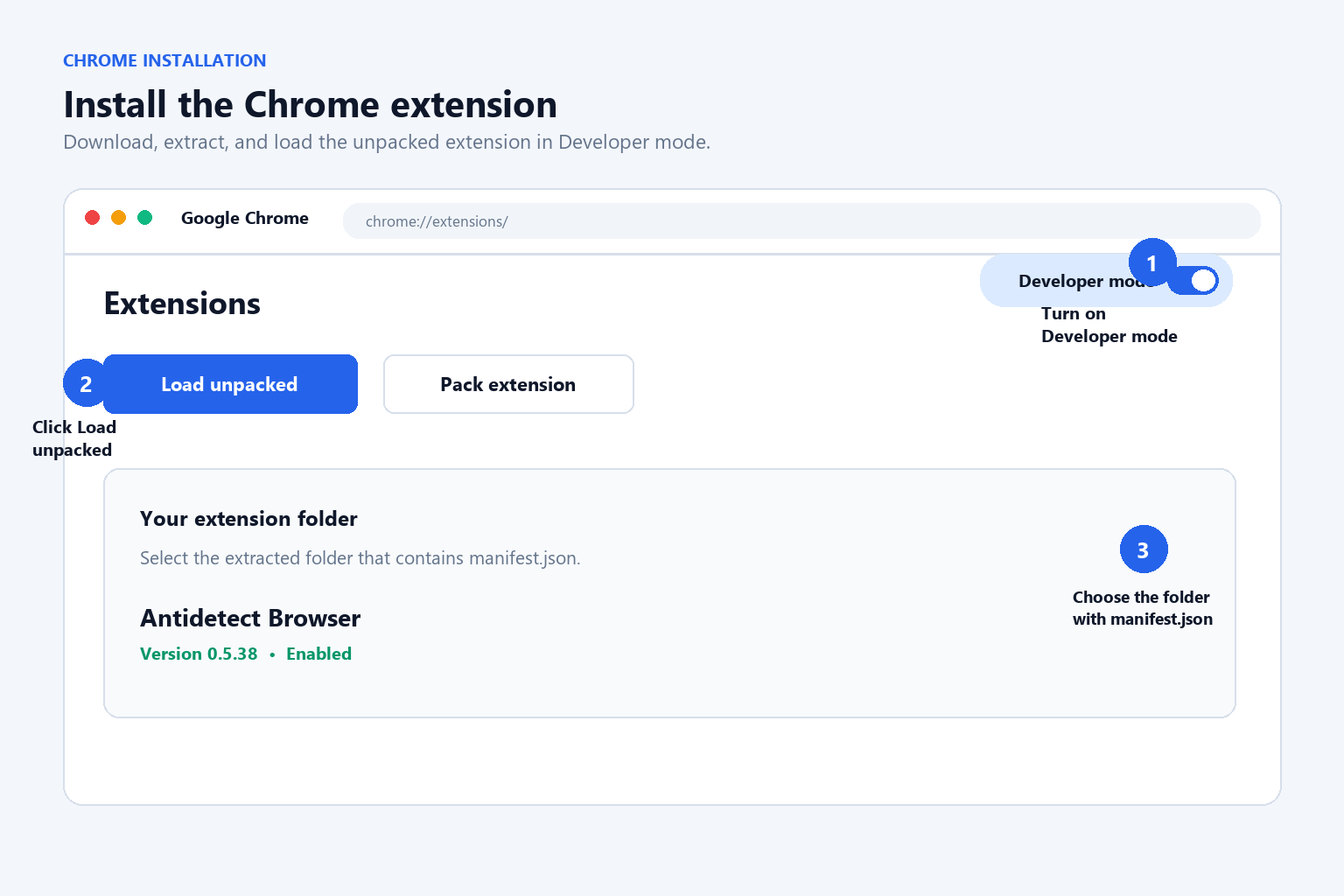
For local testing, open chrome://extensions, enable Developer mode, click Load unpacked, and select the extracted extension folder. Pin Amazon A+ Studio to the Chrome toolbar for quick access.
2. Open an Amazon product page
- Open a supported Amazon product detail page, such as Amazon.com, Amazon.co.uk, Amazon.de, Amazon.fr, Amazon.it, Amazon.es, Amazon.ca, Amazon.com.au, or Amazon.co.jp.
- Wait for the product gallery, listing details, and A+ modules to load. Scroll through the page so lazy-loaded A+ images and video cover frames appear.
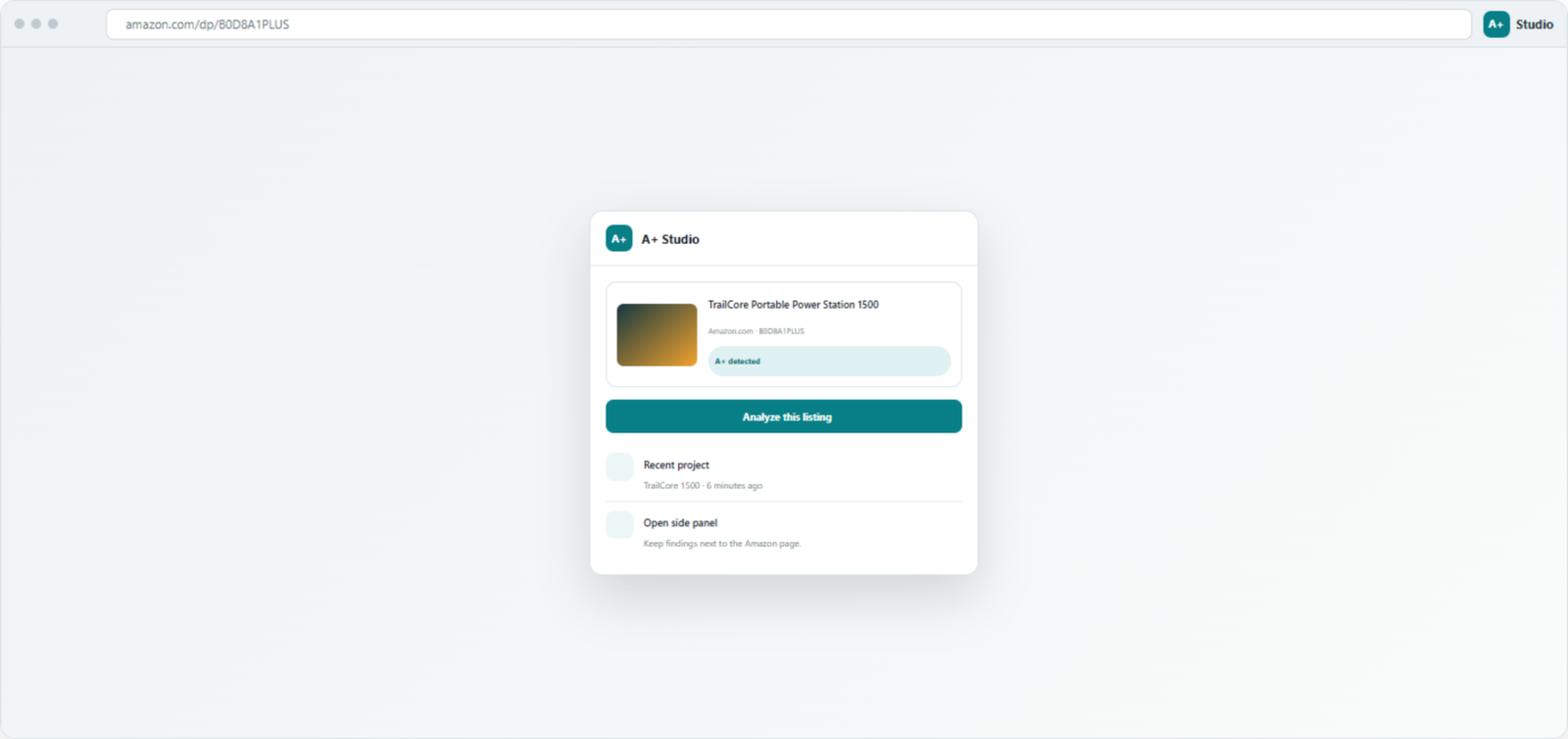
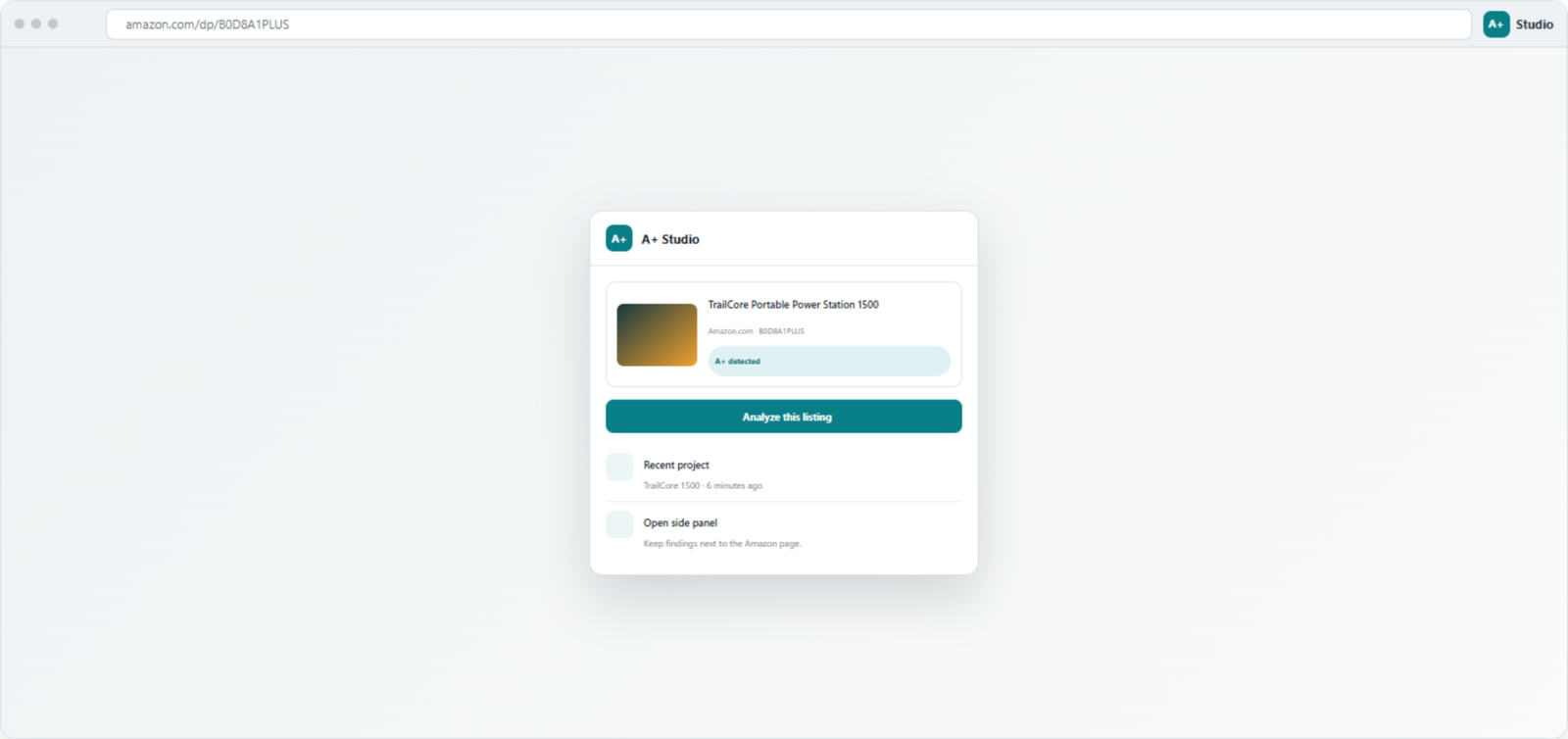
- Click the Amazon A+ Studio icon in the Chrome toolbar and open the side panel.
3. Configure AI providers
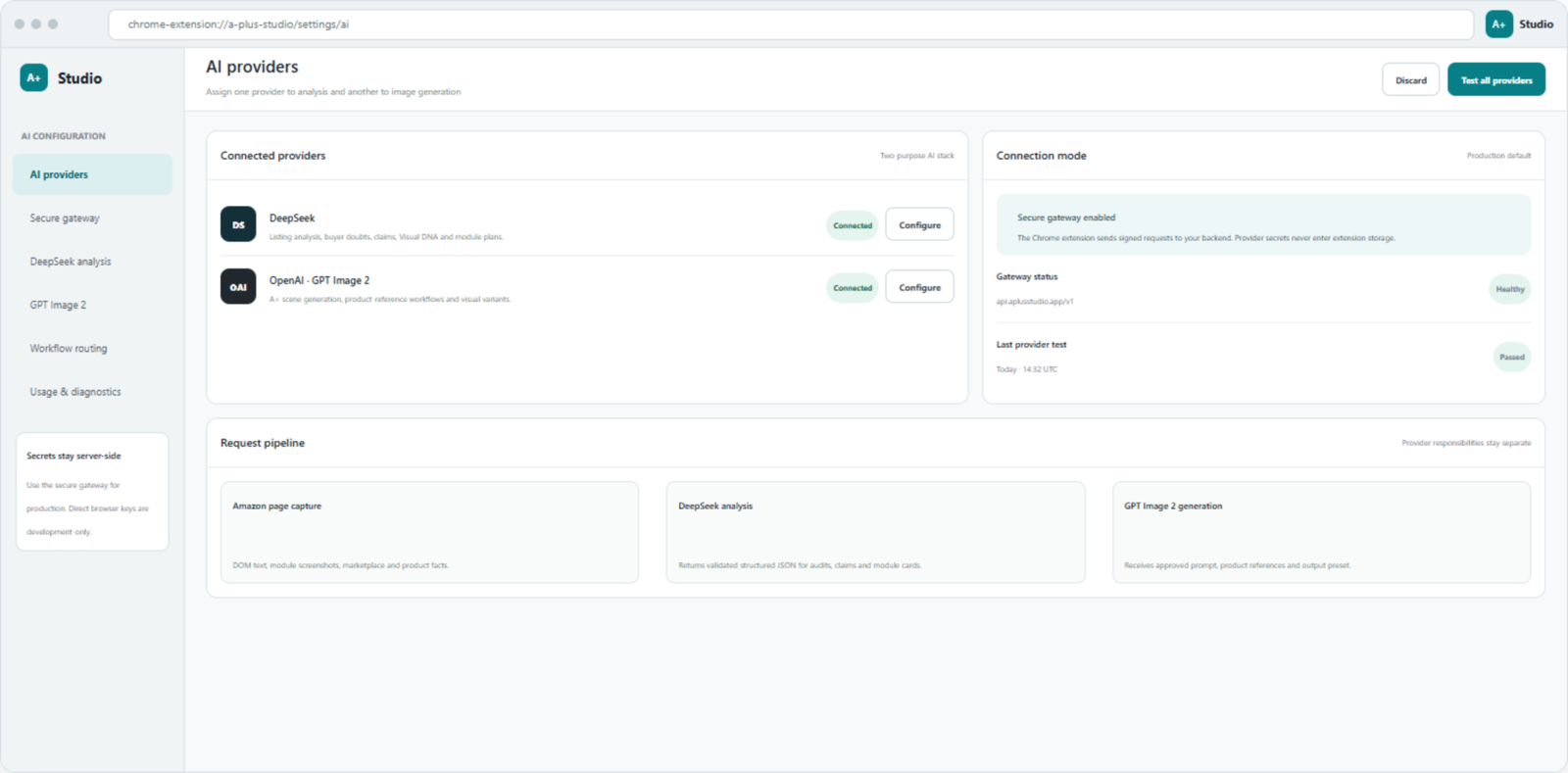
Open Settings → AI Providers. Each user enters their own API endpoint, API key, and model in their own browser. The extension does not require you to place your key on the developer’s server.
- GPT-4o: analyzes product facts, selling points, competitor A+ layouts, copy structure, and reusable prompt patterns.
- GPT-Image-2: generates main images, detail images, lifestyle scenes, size references, and A+ images.
- Enter your OpenAI or OpenAI-compatible endpoint and click Test Connection.
- Save the settings. API keys and workspace settings are stored locally where technically possible.
4. Upload your own product images
Upload your own product images before generating anything. Your uploaded images are the only product-appearance source for generation. Competitor images are used to learn visual grammar only; the extension does not directly copy competitor products, logos, faces, packaging, or copy.
For apparel, upload front, back, detail, and color-variant views. For other products, upload a clean main view, detail views, and packaging or accessory views. Confirm that the product color, shape, and included parts were recognized correctly.
5. Capture and select competitor A+ images
- Click Capture on the current Amazon page.
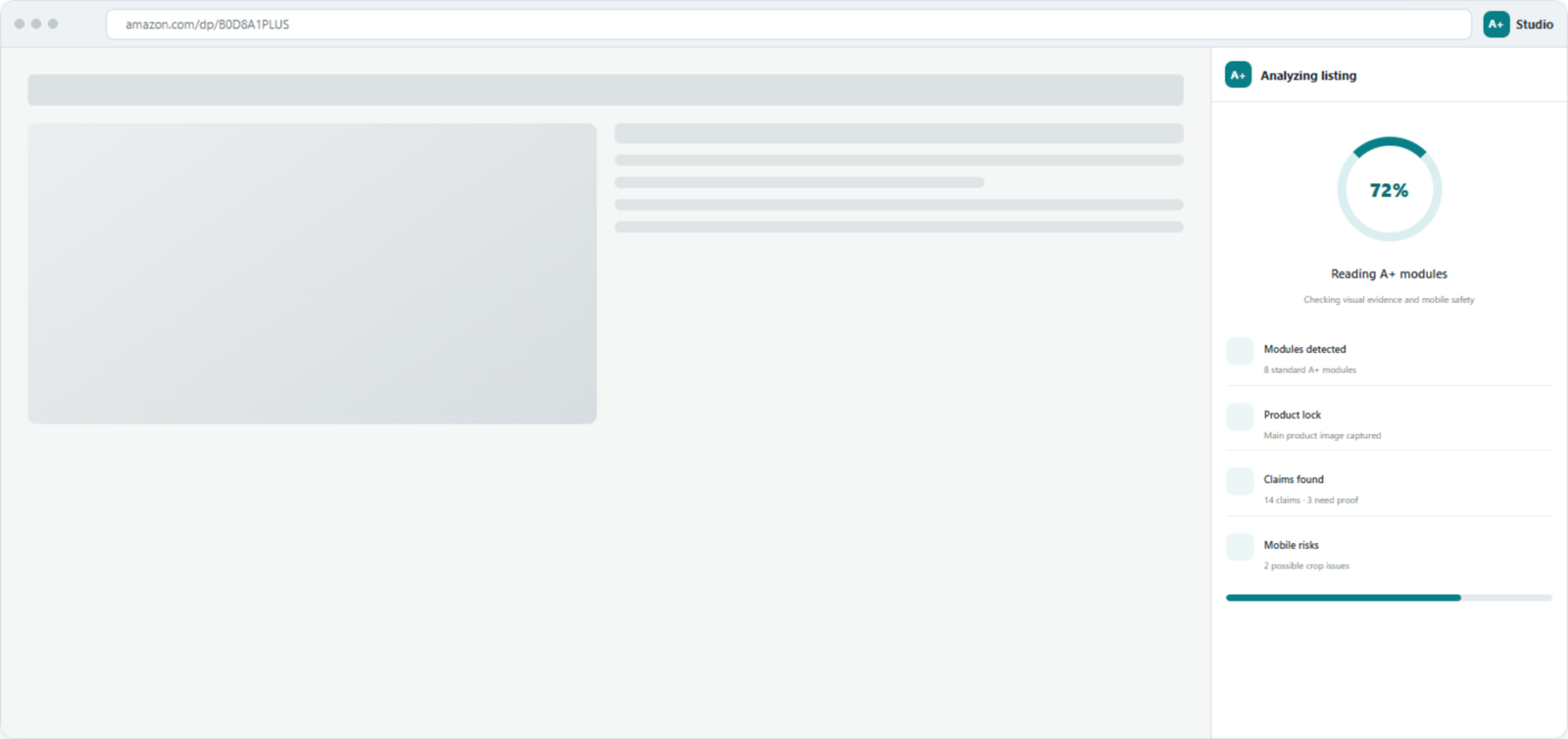
- The extension separates product-gallery images from A+ module images. Only A+ module images are used for learning competitor layout and visual DNA.
- Delete any reference images you do not like and keep only the modules you want to learn.
- If no A+ images are found, return to Amazon, scroll to the A+ section, wait for the images to load, and capture again.
6. Analyze the A+ visual language and prompts
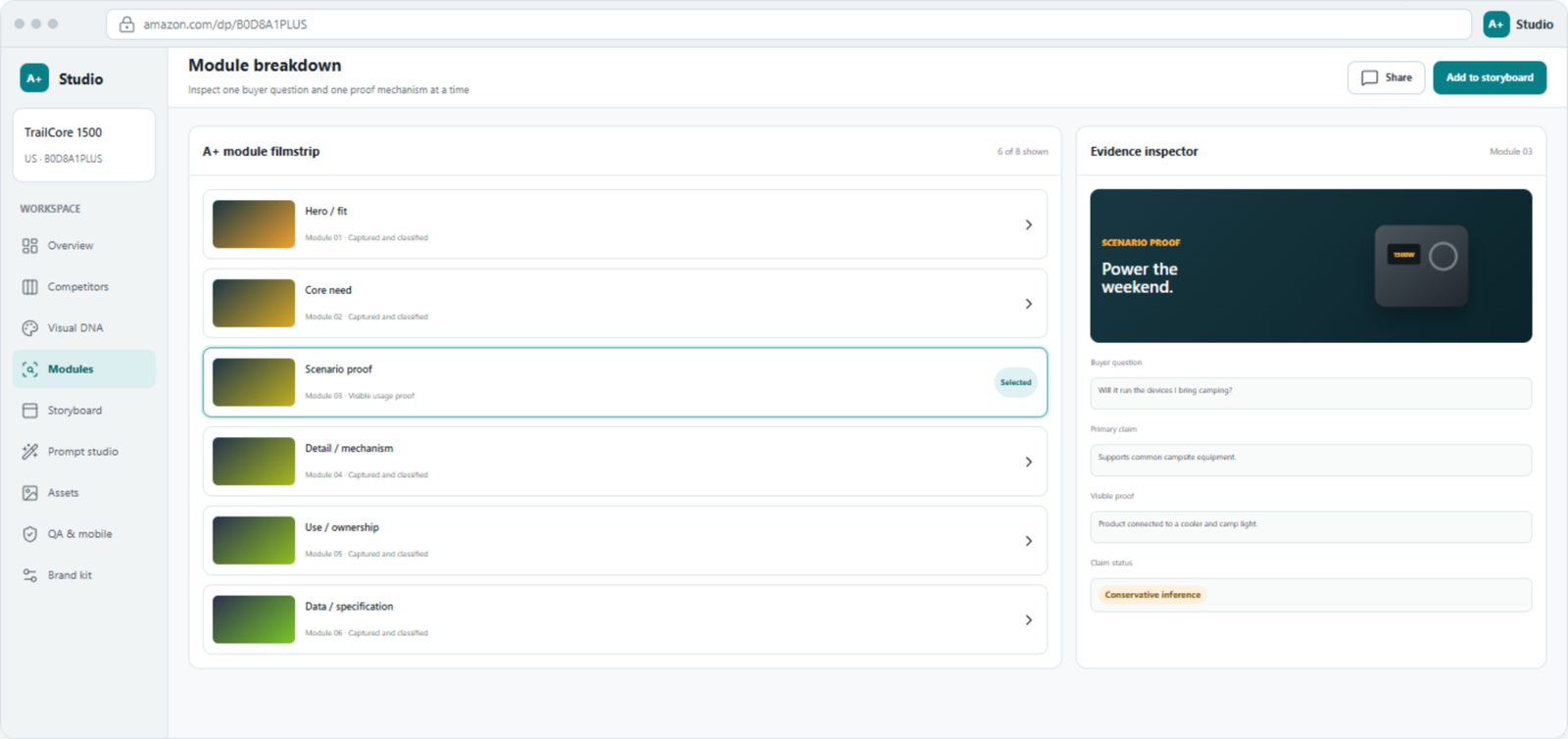
Click Analyze. GPT-4o reviews the selected competitor A+ images first and then analyzes your product. Each reference image receives an editable breakdown containing:
- Readable copy and hierarchy visible in the reference;
- People, product placement, poses, inset-card count, positions, and rotation;
- Background materials, furniture, windows, plants, lighting, color roles, and negative space;
- Copy strategy, copy structure, layout notes, typography treatment, and a complete generation prompt.
You can edit the suggested copy and final prompt, copy the prompt, and save changes when the field loses focus. The extension learns reusable visual structure and rebuilds it around your product facts instead of copying the competitor artwork.
7. Choose image types and quantity
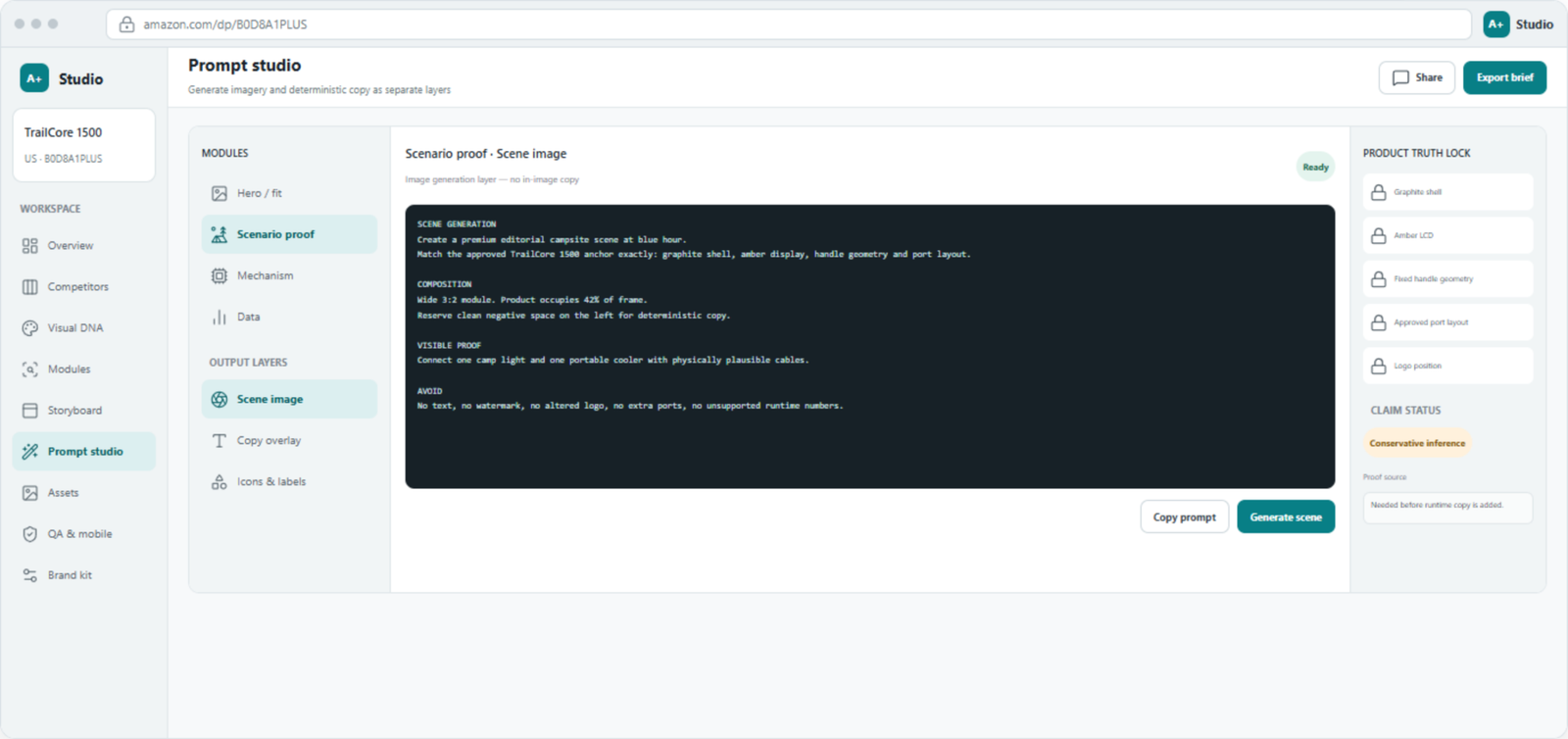
Open Generate Images or Batch Generate:
- Main image: 1:1, pure white background. The first main image has no model, text, props, or extra decoration.
- Listing detail images: selling points, detail views, use instructions, and product structure.
- Lifestyle scenes: realistic use environments. Apparel scenes use newly generated virtual models wearing your uploaded product, with varied poses and compositions.
- Size reference: uses the selected marketplace’s default size standard and can be edited manually.
- A+ Content: 970 × 600 px hero, 970 × 300 px selling-point banner, or 1464 × 600 px full-width module.
Select between one and four images for each type. Jobs run asynchronously and in parallel, so one failed image does not block the others.
8. Review, enlarge, and download
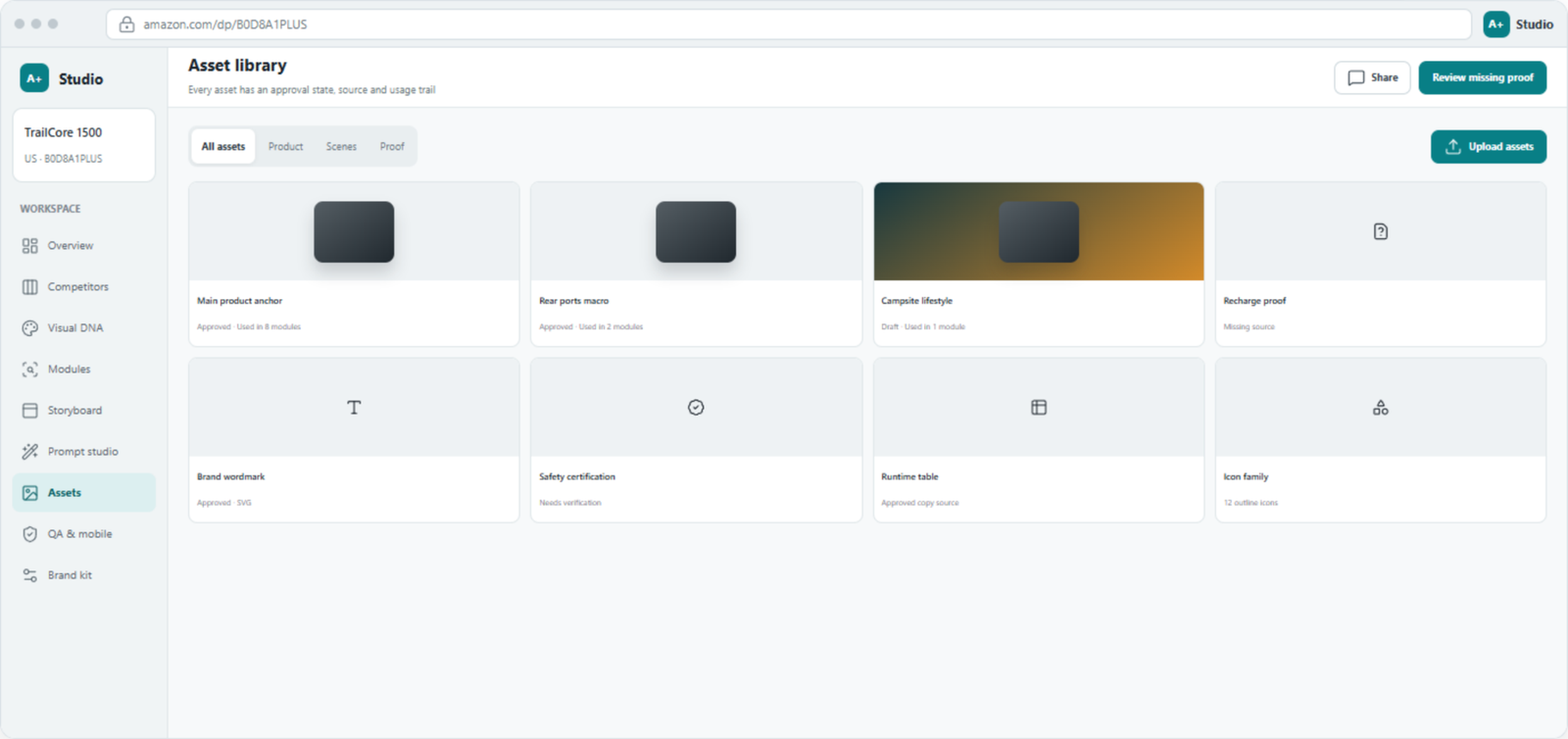
When generation is complete, click an image to view it larger. You can regenerate one result, copy its prompt, or add it to history. The Asset Library keeps your generated versions for later review.
Click Download ZIP to save the current results together. The ZIP is organized by main image, lifestyle scene, size reference, and A+ image type.
9. Recommended workflow
Open an Amazon listing → configure AI → upload your product → capture competitor A+ modules → remove unwanted references → Analyze → edit prompts → choose image types and quantity → generate in parallel → review and enlarge → download the ZIP.
10. Troubleshooting
- No A+ images: scroll to the A+ section, wait for lazy-loaded assets, and capture again.
- AI is not configured: open Settings → AI Providers, enter the endpoint and key, test the connection, and save.
- Generation seems slow: use batch asynchronous generation and wait for each task card; do not click Generate repeatedly.
- Apparel model looks inaccurate: upload clearer front, back, and detail product views.
- Copy needs changes: edit the suggested copy or final generation prompt in the analysis panel and regenerate.
Privacy and data handling
API keys, settings, project history, and generated assets are stored locally in the browser where technically possible. When you request AI analysis or image generation, the required text and images are sent to the AI provider configured by you. Review that provider’s privacy policy before sending listing data or product images.
Amazon A+ Studio is an independent tool and is not affiliated with, endorsed by, or sponsored by Amazon.
Privacy Policy: https://cxgrowthlab.com/amazon-a-studio-privacy-policy