Twitter Video Downloader for X: Download MP4 Videos on Chrome & Firefox
Download ClipSave for Your Browser
Choose your browser and download the ready-to-install ZIP package.
Popular searches: Twitter video downloader, X video downloader, download Twitter videos, Twitter MP4 downloader, save X videos, Chrome video downloader, Firefox video downloader.
Download ClipSave for Chrome or Firefox
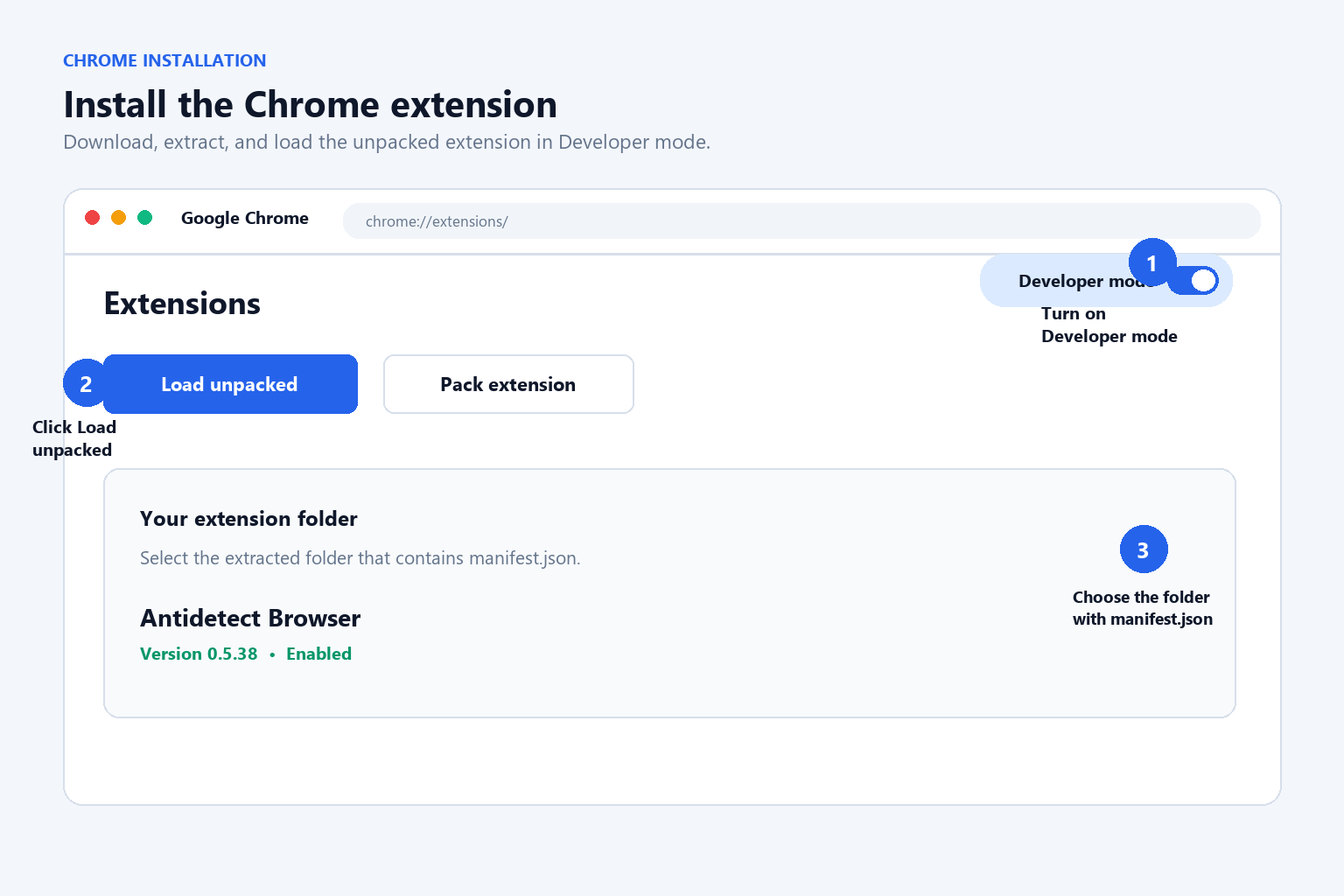
Choose the browser package that matches your browser. The Chrome package is a Manifest V3 extension for Google Chrome and other Chromium browsers. The Firefox package includes the Firefox background-script configuration. Extract the ZIP file before installing it in developer mode.
Chrome installation
- Download the Chrome / Google Chrome ZIP package above.
- Extract the ZIP file to a local folder.
- Open
chrome://extensions, enable Developer mode, select Load unpacked, and choose the extracted folder. - Open a public X or Twitter post with a video, then select Download MP4.
Firefox installation
- Download the Firefox ZIP package above.
- Open
about:debugging#/runtime/this-firefox. - Select This Firefox, choose Load Temporary Add-on, and select the package’s
manifest.jsonfile after extraction. - Open a public X or Twitter post with a video and use the ClipSave download control.
Responsible use: Download only videos you own or have permission to save. Respect copyright, creators’ rights, and the rules of X, Twitter, Chrome, and Firefox.
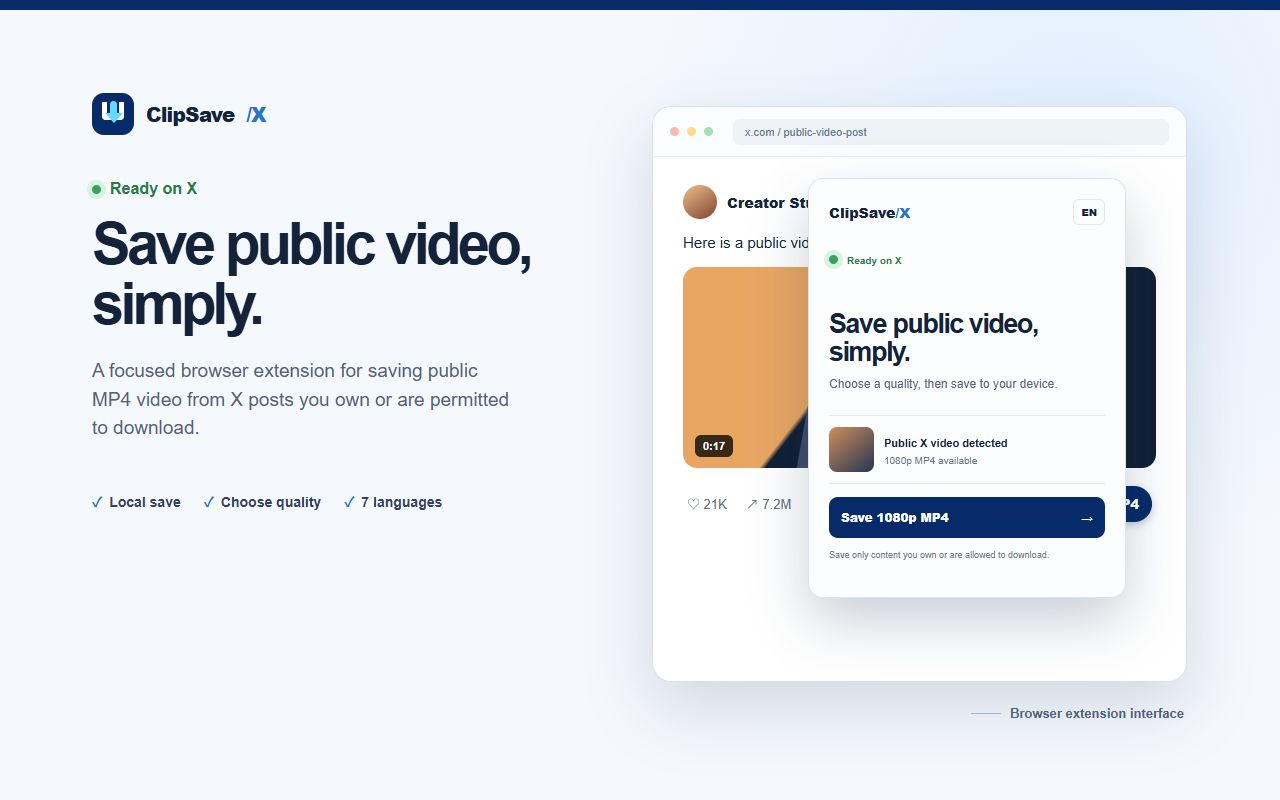
If you want to download a public video from X (formerly Twitter) for an authorized local copy, X Video Downloader – ClipSave provides a focused browser workflow. This guide explains how to install the extension, find its controls, choose an available MP4 quality, save the file, change the interface language, and solve common problems.
Important: Download only videos you own or have permission to save. Do not use ClipSave to access private, paid, restricted, or copyrighted media without authorization.
What Is X Video Downloader – ClipSave?
ClipSave is a Chrome extension designed to identify supported public MP4 video sources on X and Twitter pages. When you request a download, the extension checks the selected public post, shows available video quality options when possible, and sends the chosen MP4 file to your browser’s standard download flow.
The extension is built around a single purpose: helping users save an authorized local copy of a supported public X video. It does not require you to paste the video URL into a third-party download website.
Before You Start
Check these requirements before using the X video downloader:
- Use a Chromium-based browser that supports Chrome extensions.
- Install and enable X Video Downloader – ClipSave.
- Open a public post on
x.comortwitter.comthat contains a video. - Make sure the video is allowed to play in your browser.
- Confirm that you own the media or have permission to download it.
How to Install ClipSave
- Open the ClipSave listing in the Chrome Web Store.
- Select Add to Chrome.
- Review the permissions shown by Chrome.
- Select Add extension to complete the installation.
- Open Chrome’s Extensions menu and pin ClipSave if you want its icon to remain visible in the toolbar.
After installation, refresh any X tabs that were already open. Refreshing allows the extension to add its Download MP4 control to supported video posts.
How to Download an X Video as MP4
Step 1: Open the Public X Video Post
Go to X and locate the public post containing the video you want to save. You can open the post on its own page or use the download button from a supported post in the X timeline.
Let the video load before continuing. Starting playback for a moment can help the page make the available media information accessible to the extension.
Step 2: Find the Download MP4 Button
Look below the video for the dark blue Download MP4 button. The button appears next to the normal X post controls on supported public video posts.
If you prefer the extension popup, select the ClipSave icon in the browser toolbar. Then choose Find video in this post. For the popup workflow, opening the individual post page first gives the extension the clearest context.
Step 3: Let ClipSave Check the Post
After you select the download control, ClipSave checks the specific public post you selected. The button may briefly show Finding video while the extension looks for available public MP4 sources.
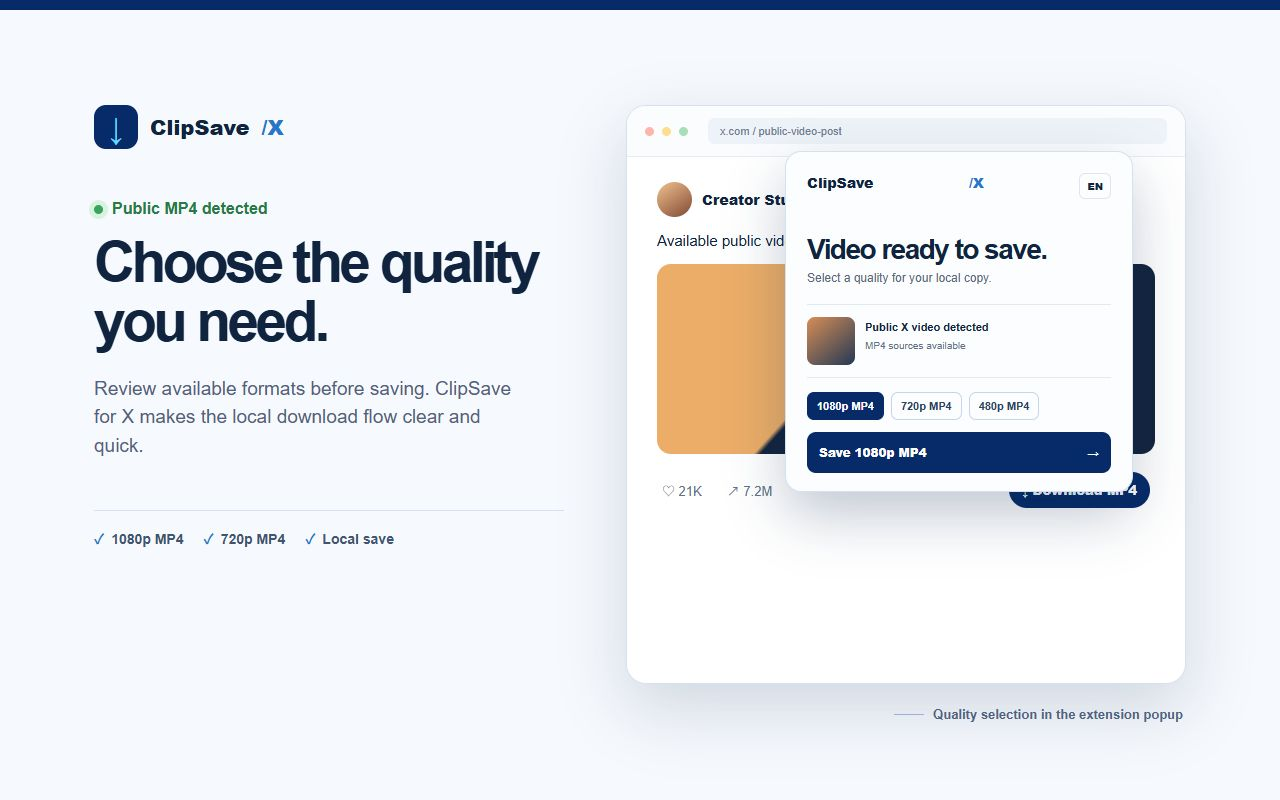
If a compatible source is found, the popup displays the video and available quality choices. The available resolutions depend on what X provides for that post; not every video has the same options.
Step 4: Choose the Video Quality
Select the MP4 quality that fits your needs. A higher resolution usually provides more visual detail but can create a larger file. A lower resolution may be better when you want a smaller file for reference, messaging, or mobile storage.
- 1080p MP4: choose this when available and when image detail is important.
- 720p MP4: a balanced option for quality and file size.
- 480p MP4: useful for smaller authorized reference copies.
ClipSave lists only the qualities it can identify for the selected post. It does not create a resolution that the source post does not provide.
Step 5: Save the MP4 File
Select the preferred MP4 option. Chrome opens its normal save dialog when browser settings require a location choice. Choose the destination folder, confirm the file name, and select Save.
If Chrome is configured to download files automatically, the file may go directly to your default Downloads folder. Open Chrome’s downloads page if you need to locate the completed file.
How to Change the ClipSave Language
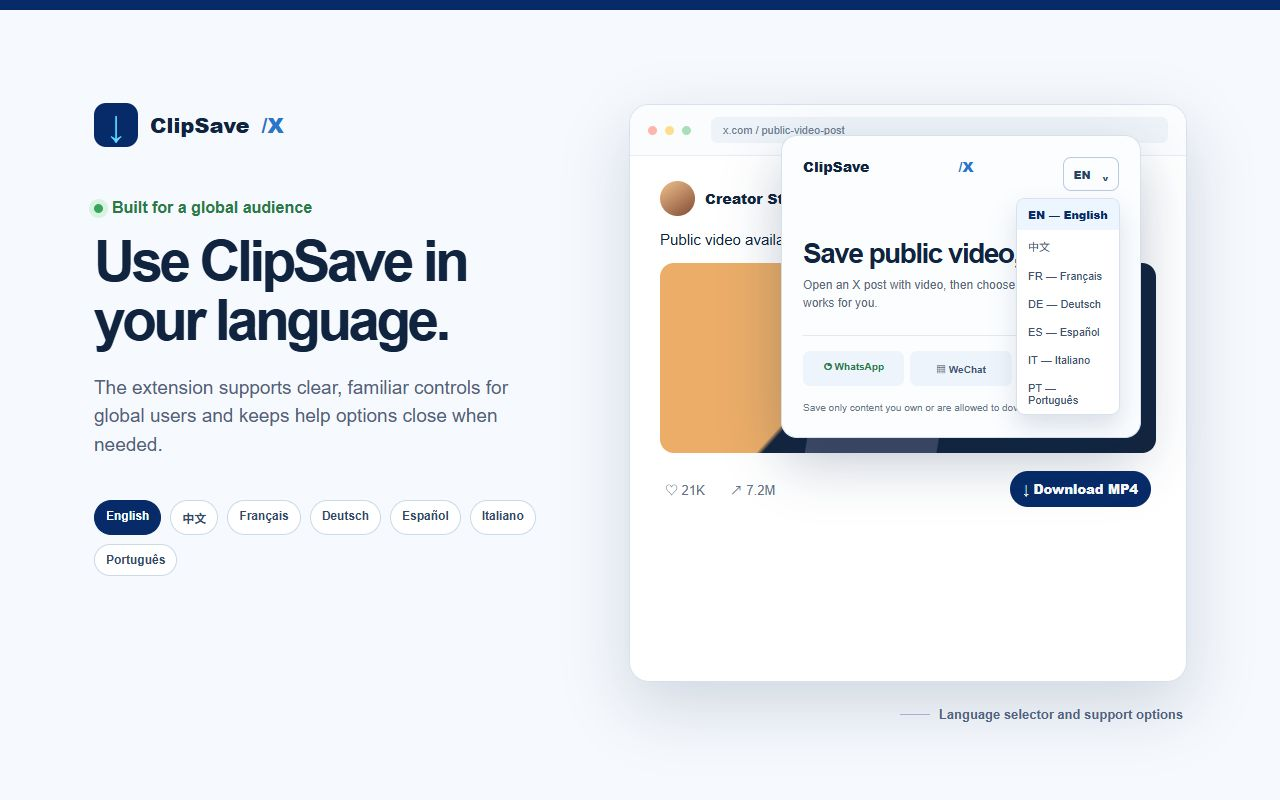
Open the extension popup and use the language selector in the upper-right corner. ClipSave includes interface options for:
- English
- Chinese
- French
- German
- Spanish
- Italian
- Portuguese
The language setting changes the ClipSave interface. It does not translate the original X post or alter the downloaded video.
What to Do If the X Video Will Not Download
Refresh the X Page
If you installed or updated ClipSave while X was already open, refresh the page. The extension’s page controls are added when the page loads.
Open the Individual Post
If the timeline button cannot identify the video, select the post timestamp or post text to open its individual /status/ page. Play the video briefly, open the ClipSave popup, and select Find video in this post.
Check That the Post Is Public
ClipSave is intended for supported public posts. Private accounts, deleted posts, region-restricted media, paid content, livestreams, and some protected media may not provide a downloadable MP4 source.
Reload the Extension
For a locally installed test version, open chrome://extensions, find X Video Downloader – ClipSave, select Reload, and then refresh the X page. Store-installed versions normally update automatically.
Review Browser Download Settings
Make sure Chrome is allowed to download files and that your selected download folder is available. Security software or managed-browser policies can also block downloads.
Try Another Public Video Post
Testing another authorized public video helps determine whether the issue is specific to one post. X may deliver different media formats for different posts.
Privacy and Permissions
ClipSave uses browser permissions to show its controls on X and Twitter pages, inspect the public post after you request a download, start the browser download, and remember your selected interface language. Downloaded video files are saved through your browser’s local download system rather than uploaded to a CX Growth Lab video server.
Read the complete ClipSave for X Privacy & Local Download Notice for details about data handling, storage, permissions, and user choices.
Frequently Asked Questions
Can ClipSave download every video from X?
No. ClipSave works only when a supported public MP4 source is available to the extension. Private, restricted, deleted, protected, paid, or unsupported media may not be downloadable.
Where are downloaded X videos saved?
Files are saved to the folder selected in Chrome’s download dialog or to your browser’s default Downloads folder.
Does ClipSave upload videos to another server?
Downloaded files are sent to the browser’s local download flow. ClipSave does not upload the downloaded video to a CX Growth Lab server.
Why do I see different MP4 quality options?
X can provide different resolutions and bitrates for different posts. ClipSave displays the compatible MP4 options it can identify for the selected video.
Can I use ClipSave for copyrighted content?
Only if you own the content or have permission from the rights holder. You are responsible for following copyright law, platform terms, and any other applicable rules.
Does ClipSave support the old Twitter domain?
The extension includes support for both x.com and twitter.com pages where a compatible public video is available.
Start with a Supported Public Video
Once ClipSave is installed, open a public X video you are permitted to save, select Download MP4, choose an available quality, and let Chrome handle the local file. For questions about the extension, visit the CX Growth Lab contact page.