Gemini Media Download Helper: Download Images & Videos
Gemini Media Download Helper is a browser extension for downloading supported images and videos that Gemini has already made available in your conversations. This complete guide includes the Chrome and Firefox downloads, installation steps, recommended settings, annotated screenshots, download history, language options, privacy information, and troubleshooting.
Download Gemini Media Download Helper
Choose the package for your browser. Version 1.3.0 supports individual image and video downloads, batch downloads from the latest Gemini response, local PNG conversion, customizable filenames, download history, and a multilingual interface.
Download for Mozilla FirefoxVersion 1.3.0 · ZIP package
Compatibility: The Chrome package works with Chrome, Edge, Brave, and other Chromium-based browsers. The Firefox package uses a Firefox-compatible manifest and can be loaded as a temporary add-on for testing.
What the extension can do
- Download supported images directly from the current Gemini conversation.
- Download supported videos that Gemini has already made available on the page.
- Save one item or batch-download media from the latest response.
- Keep original video formats when available, including MP4, WebM, MOV, and M4V.
- Optionally convert supported images to PNG locally in your browser.
- Customize filenames, download folders, notifications, and batch concurrency.
- Use English, Simplified Chinese, Traditional Chinese, German, French, Spanish, Italian, Portuguese, Dutch, Polish, or Swedish.
Important: The extension saves resources already available to you in Gemini. It does not remove or alter SynthID, metadata, embedded visible watermarks, provenance information, sign-in requirements, quotas, or access controls.
Before you begin
- Open a Gemini conversation in Chrome or Microsoft Edge.
- Generate or open a response that contains an image or video.
- Open the extension from your browser toolbar.
- Use the language selector in Settings or on the welcome page. English is the default language.
1. Download media from Gemini
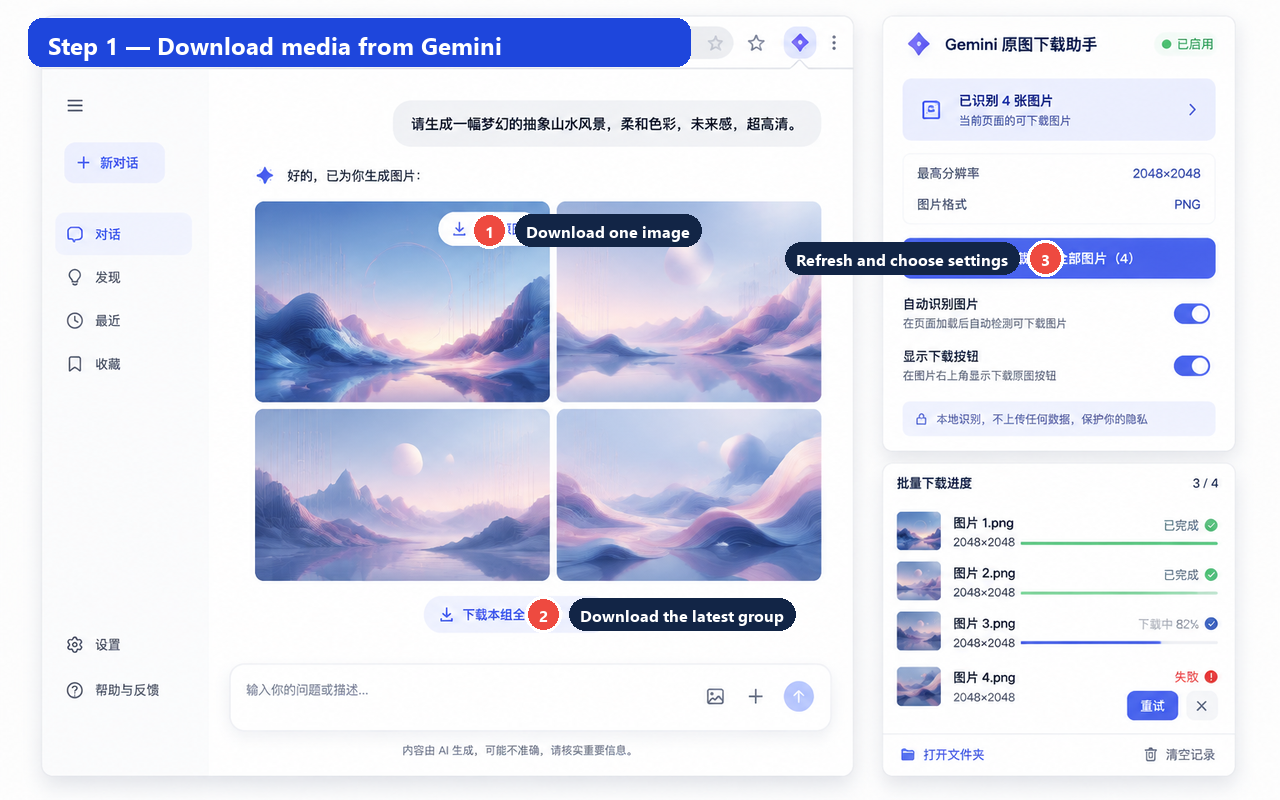
When the extension detects downloadable media, the popup shows the highest available resolution and file format. Use the floating button on an image to download one item, or use the main action to start a download for the latest generated group.
- Open the Gemini conversation that contains your generated media.
- Click Refresh in the extension popup if the page was already open.
- Click the image overlay to save one file, or choose Download all media to save the latest group.
- Follow the progress panel until the browser has created the download tasks.
2. Configure download and file settings
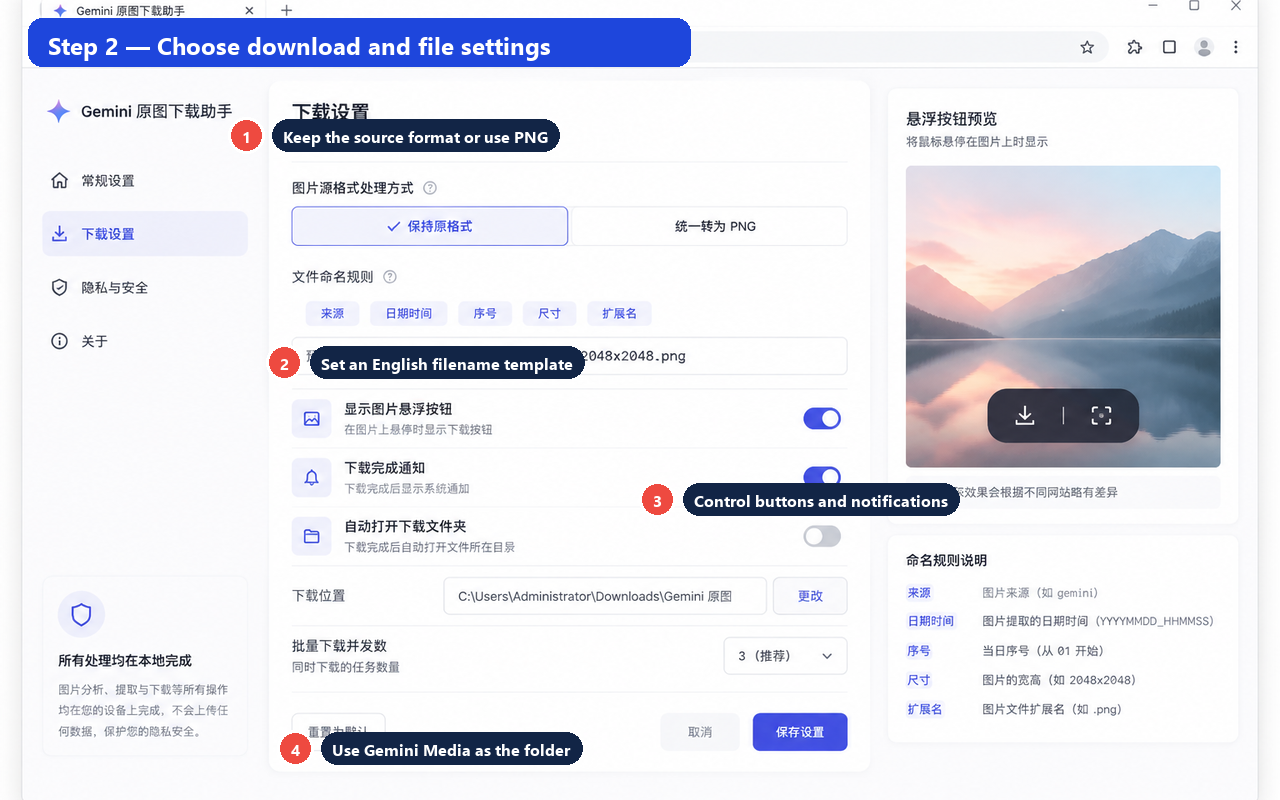
Open Settings → Downloads to choose how files are saved. The default folder is Gemini Media, so filenames and folder names remain in English.
- Choose Keep original format to preserve the source media type, or choose PNG for locally converted images.
- Keep the English filename template, for example
gemini_{date}_{time}_{index}_{size}. - Turn the floating download controls and completion notifications on or off.
- Set the subfolder to
Gemini Media, or leave it blank to use your browser’s default Downloads folder. - Choose a batch concurrency level. 3 (recommended) offers a good balance between speed and stability.
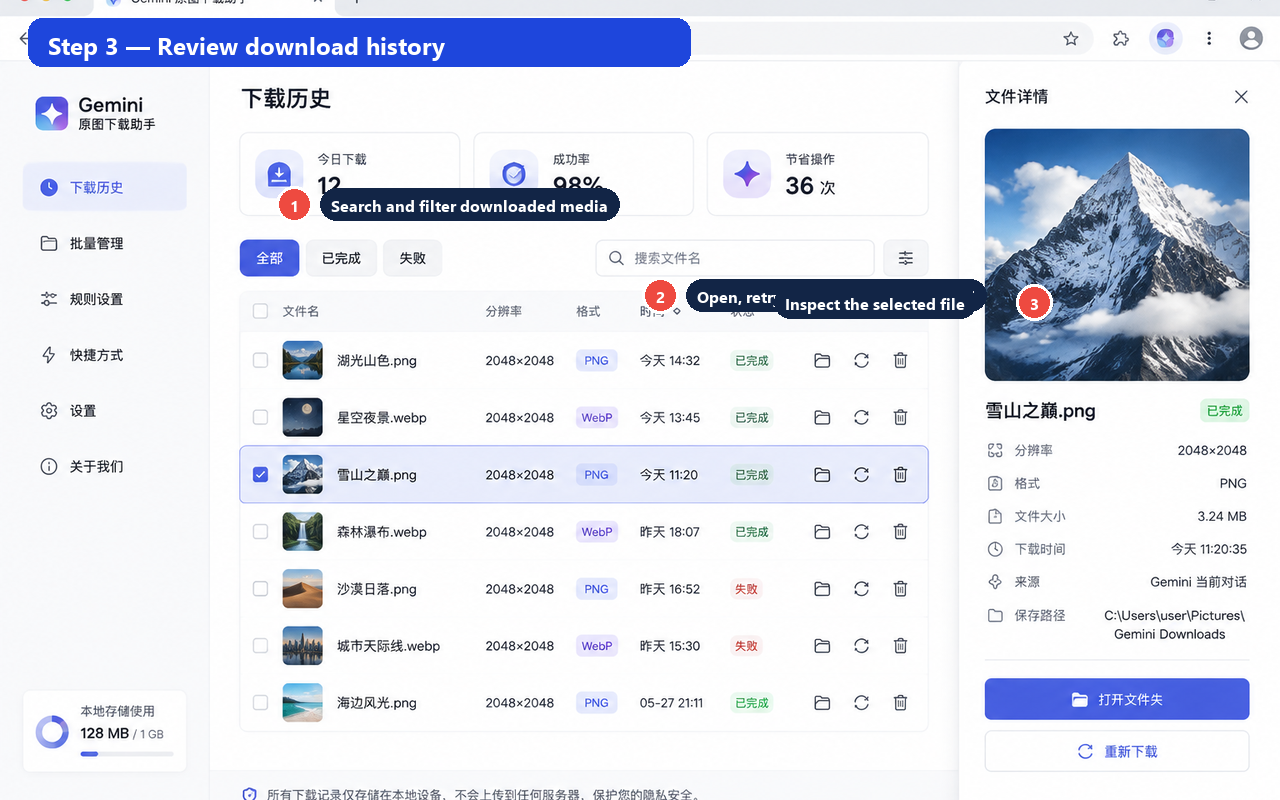
3. Review download history
Open Download history from the popup or the Settings page to find local download records. The history page helps you confirm what was saved without uploading your media or conversation content.
- Use the search field to find a filename.
- Use the All, Completed, and Failed filters to narrow the list.
- Select a record to inspect its format, dimensions, date, and file location.
- Use the row actions to show the file in your browser downloads, retry an item, or remove only the local history record.
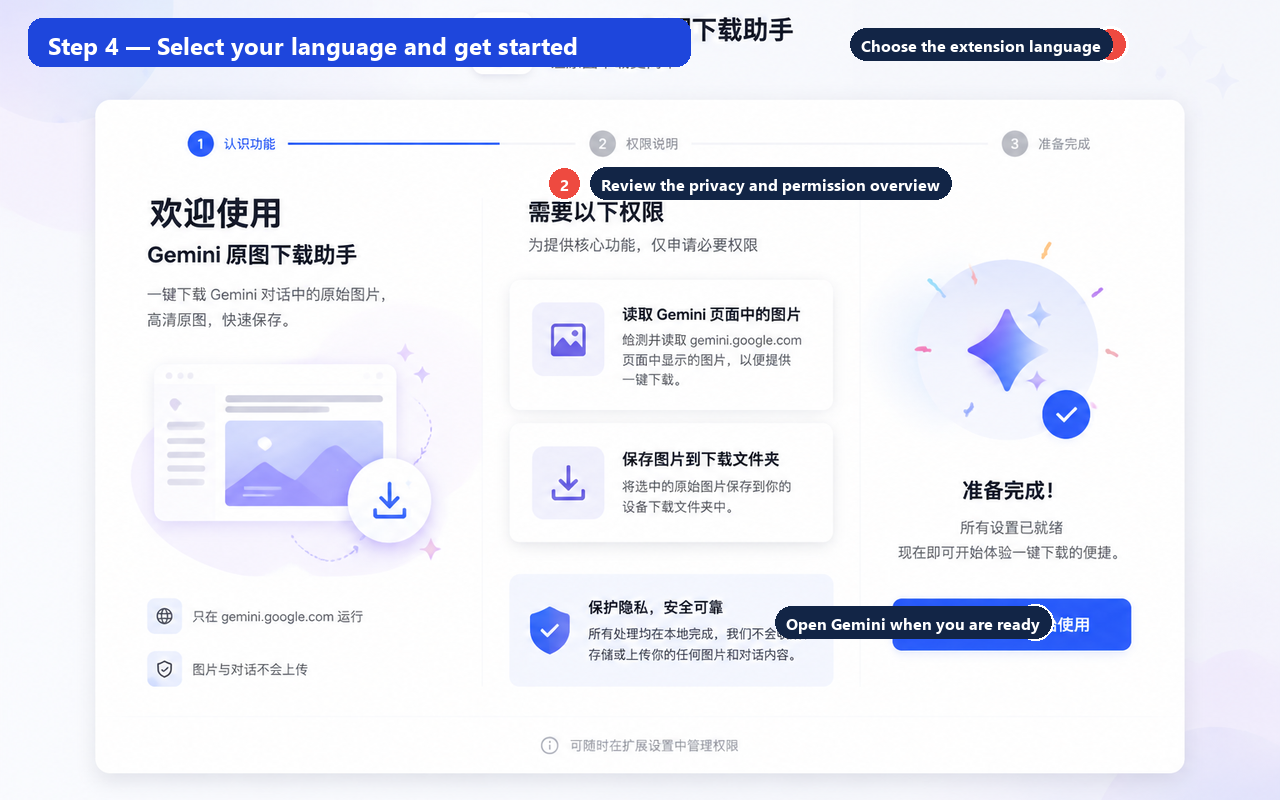
4. Select a language and complete setup
The welcome page is also a language setup page. The selector is connected to the same extension language setting, so the selected language is used throughout the popup, Settings, history, and onboarding screens.
- Open the welcome page from User guide in the popup.
- Use the language selector at the top of the page.
- Review the permission and privacy information.
- Click Open Gemini when you are ready to start.
Available languages include English, Simplified Chinese, Traditional Chinese, German, French, Spanish, Italian, Portuguese (Portugal), Dutch, Polish, and Swedish.
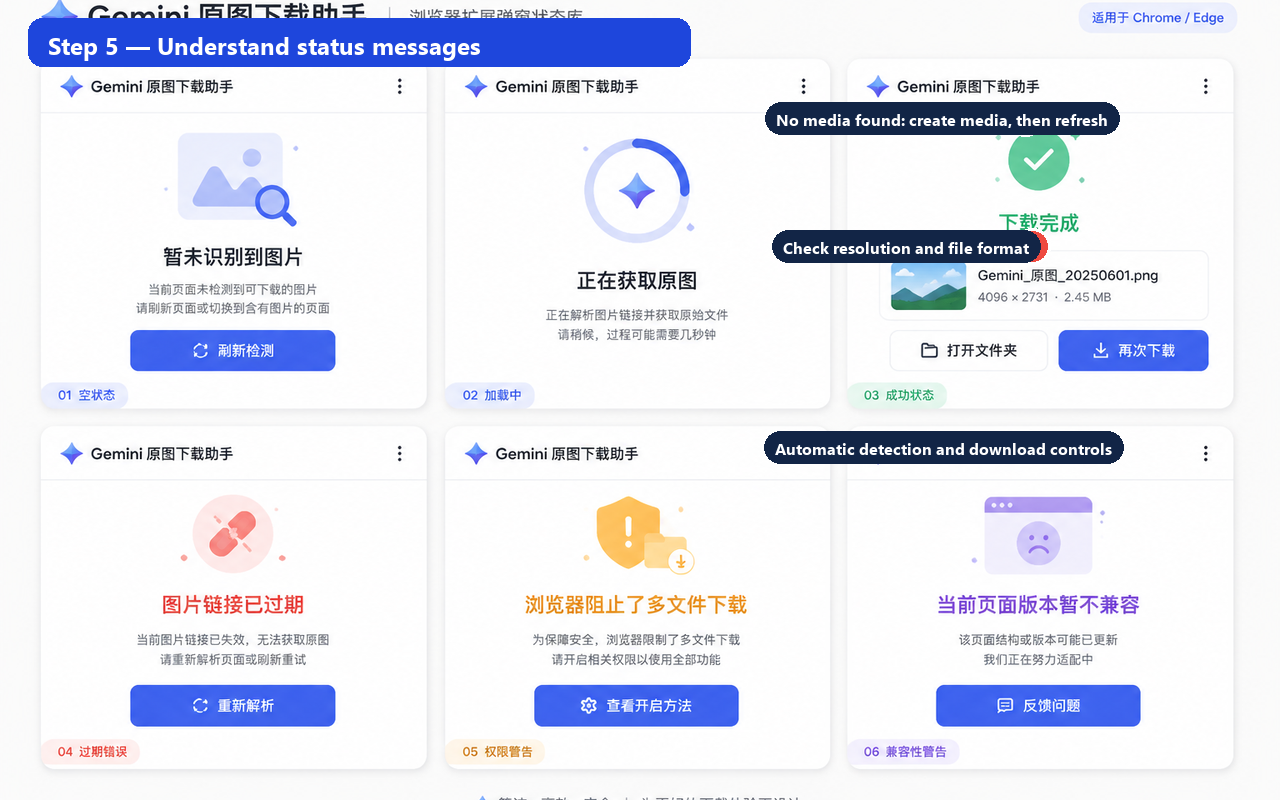
5. Understand media status messages
The popup uses clear status messages so you know what to do next.
- No media found yet: generate an image or video in Gemini, then click Refresh.
- Scanning: wait briefly while the current Gemini page is checked.
- Ready: downloadable media was found and you can start a single or batch download.
- This page is not supported: open a Gemini conversation at
gemini.google.comand refresh the popup.
Privacy and capability notes
Media detection and settings are handled locally in the extension. The helper does not upload your media, prompts, or conversation content to a developer server. It saves only media that Gemini has already made available to the signed-in user. It does not remove embedded provenance, content credentials, or SynthID.
Quick troubleshooting
- The popup shows no media: generate media in the active Gemini conversation, then click Refresh.
- The floating action is missing: enable Show download buttons in Settings.
- A file cannot be downloaded again: return to Gemini and scan the conversation again because original media links may expire.
- You need to change the language: open Settings → General or use the welcome page language selector.
Tip: For the smoothest workflow, keep automatic detection enabled, use the Gemini Media subfolder, and review the history page after a larger batch.